

If you’re ready to unpair your Apple Watch but aren’t sure where to start, you’re in the right place. Whether you want to reset your watch, prepare it for a new owner, or simply fix syncing issues, unpairing is the key step.
The process might seem tricky at first, but with clear, simple instructions, you can get it done quickly and safely. Keep your watch and iPhone close, and follow along—this guide will walk you through every step so you don’t miss a thing.
By the end, you’ll know exactly how to unpair your Apple Watch, with or without your iPhone, hassle-free. Let’s dive in!
Unpair Via Iphone
Unpairing your Apple Watch via your iPhone is the simplest method. It removes the connection cleanly and saves a backup of your watch data. This backup helps restore your information if you pair the watch again later.
Follow these steps carefully to unpair your Apple Watch using your iPhone.
Open Apple Watch App
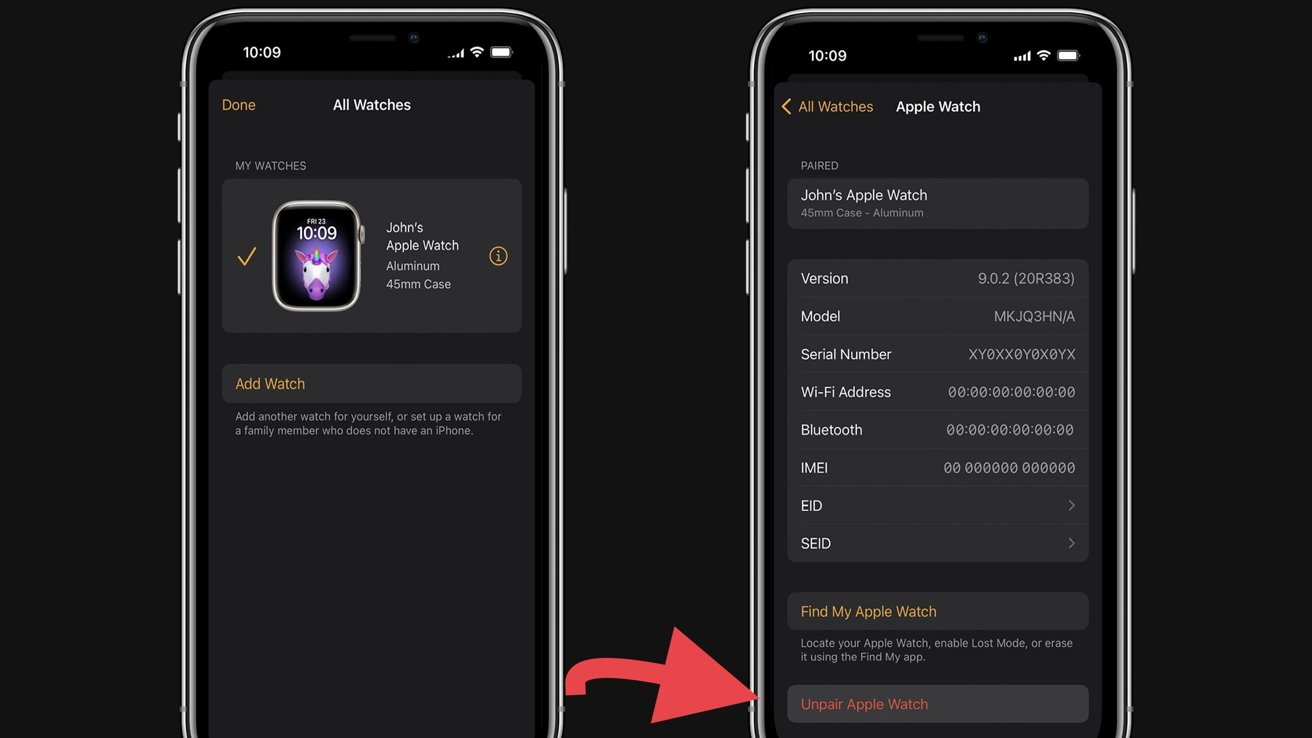
Start by unlocking your iPhone. Find and open the Apple Watch app. This app controls all your watch settings and connections.
Select Your Watch
Inside the app, look at the top of the screen. Tap on the name of your Apple Watch. This opens the options for that specific watch.
Confirm Unpairing
Tap the “i” icon next to the watch name. Then select “Unpair Apple Watch.” A confirmation message appears. Tap again to confirm. The unpairing process starts.
Manage Cellular Plan
If your watch has cellular service, the app asks about your plan. Choose to keep or remove the plan. Remove it if you plan to sell the watch or no longer need the cellular service.
Disable Activation Lock
Unpairing automatically disables Activation Lock. This lock protects your watch from unauthorized use. It also removes the watch from your Apple ID, making it ready for a new user.
Erase Directly On Watch
Erasing your Apple Watch directly on the device is a quick way to unpair it without needing your iPhone. This method wipes all data and settings from the watch. It is useful if you lost your iPhone or want to prepare the watch for a new user. The process is simple and can be done in just a few steps.
Access Settings
Start by pressing the Digital Crown on your Apple Watch. Find and tap the Settings app icon. This app lets you manage all your watch preferences.
Navigate To Reset
Scroll down and tap General. Next, scroll again to find and tap Reset. This section controls erasing and resetting options.
Erase Content And Settings
Tap Erase All Content and Settings. This action will delete all your data and restore the watch to factory settings. Confirm your choice to proceed.
Enter Passcode
Your Apple Watch will ask for your passcode. Enter it carefully to authorize the erase process. Without the passcode, the watch will not reset.
Remove Cellular Plan Option
If your watch has cellular service, the screen will ask if you want to keep or remove your plan. Choose Remove if you plan to sell or give away the watch. Otherwise, you can keep the plan active.
Unpair Without Iphone
Unpairing your Apple Watch without the iPhone is possible through remote methods. This is useful if you lost or sold your iPhone but still want to erase your watch. The process involves using iCloud and the Find My app to erase the watch and remove Activation Lock. After that, you can reset the watch to factory settings. Follow these simple steps to do it safely and securely.
Use Icloud To Erase Remotely
Start by accessing iCloud on a computer or another device. Use a browser to visit iCloud.com and log in with your Apple ID. This lets you manage your devices linked to your account. You can erase your Apple Watch remotely to protect your data. This step is crucial if you no longer have the paired iPhone.
Sign In To Find My App
Once logged into iCloud, open the Find My app or Find iPhone section. This tool helps locate your devices and manage them. Select your Apple Watch from the list of devices. This shows its current status and location if available. You need this to proceed with erasing the watch remotely.
Select Apple Watch
Click on your Apple Watch in the device list. This opens options specific to that watch. Choose the option to erase the watch. This action removes all personal data from the device. It also prepares the watch for the next step of removing Activation Lock.
Erase And Remove Activation Lock
Confirm the erase command to wipe your Apple Watch. The process deletes all content and settings remotely. After erasing, select the option to remove the watch from your account. This step disables Activation Lock, allowing new users to set up the watch. Without this, the watch remains linked to your Apple ID.
Reset Watch After Remote Erase
After the remote erase and Activation Lock removal, reset your watch locally. On the watch, open Settings > General > Reset. Tap on Erase All Content and Settings to finalize the reset. Enter your passcode if asked. This ensures the watch is clean and ready for use or sale.

Credit: support.apple.com
Post-unpair Effects
Unpairing your Apple Watch starts a series of changes to the device. These changes prepare your watch for a fresh start or transfer to another user. Understanding these effects helps you manage your device better after unpairing.
Factory Reset Status
Unpairing automatically triggers a factory reset on your Apple Watch. This step deletes all personal data from the device. The watch returns to its original settings and removes all apps and information. It ensures your privacy by wiping your content.
Backup Creation
Before the reset, your iPhone creates a backup of the Apple Watch data. This backup saves your settings, app data, and watch faces. You can use this backup to restore your watch later. It makes setting up a new or repaired watch easy.
Activation Lock Removal
Unpairing removes the Activation Lock from your Apple Watch. Activation Lock keeps your watch secure if lost or stolen. Removing it allows a new user to activate the watch without issues. This step is crucial if you plan to sell or give away your device.
Ready For New Setup
Once unpaired and reset, the Apple Watch is ready for a new setup. You or a new owner can pair it with any compatible iPhone. The watch acts like a new device, free from previous settings and accounts. This makes it simple to start fresh or pass it on.
Troubleshooting Tips
Troubleshooting issues while unpairing your Apple Watch can be frustrating. Some problems may stop the process or cause errors. This section offers simple tips to fix common unpairing issues. Follow these steps carefully to resolve problems and successfully unpair your device.
Watch Won’t Unpair
Sometimes, the Apple Watch may not unpair from the iPhone. Restart both devices first. Make sure your iPhone and watch have enough battery. Check your Bluetooth connection and keep the devices close. If it still won’t unpair, try resetting the watch directly from its settings. Go to Settings > General > Reset > Erase All Content and Settings. This removes data but keeps Activation Lock active.
Activation Lock Issues
Activation Lock stops others from using your watch without your Apple ID. This feature may block unpairing or setup. To remove Activation Lock, sign into iCloud.com on a computer or browser. Open the Find My app and select your Apple Watch. Choose “Erase Apple Watch” then “Remove from Account.” This step is necessary if you sold your watch or lost your iPhone.
Lost Iphone Scenarios
Losing your iPhone complicates unpairing your watch. You cannot unpair normally without the phone. Erase the watch directly from its settings as a backup plan. After erasing, use iCloud.com to remove the watch from your account. This prevents Activation Lock from stopping the new user. It also protects your personal data from misuse.
Contacting Apple Support
If problems continue, contact Apple Support for help. They can guide you through advanced steps safely. Have your Apple ID and device information ready. Support can assist with Activation Lock, unpairing errors, and lost device cases. Use their official website or visit an Apple Store for help.

Credit: www.youtube.com
Tips For Selling Or Gifting
Preparing your Apple Watch for sale or gift requires careful steps. These steps protect your personal information and make the watch ready for the new owner. Follow these tips to ensure a smooth transition and avoid issues.
Remove Cellular Plan
For Apple Watches with cellular, remove your plan first. Open the Watch app on your iPhone. Tap your watch, then tap “Cellular.” Select “Remove Cellular Plan.” This stops charges and frees the watch for the next user.
Confirm Activation Lock Is Off
Activation Lock blocks others from using your watch without your Apple ID. To turn it off, unpair the watch from your iPhone. This automatically disables Activation Lock. If you lost your iPhone, sign into iCloud.com to remove the watch remotely from Find My.
Erase Personal Data
Erase all data to protect your privacy. On the watch, go to Settings > General > Reset. Choose “Erase All Content and Settings.” Enter your passcode and confirm. This deletes your apps, settings, and data. The watch resets to factory condition.
Prepare For New Owner
Make sure the watch is clean and charged. Include any original bands or accessories. Package it securely for shipping or handover. Let the new owner know how to pair the watch with their iPhone. This helps them start fresh without trouble.
Credit: appleinsider.com
Frequently Asked Questions
How To Unpair An Apple Watch Without The Phone?
Open Settings on your Apple Watch. Go to General > Reset > Erase All Content and Settings. Confirm and enter your passcode. For Activation Lock removal, erase the watch remotely via iCloud. com/find using your Apple ID before resetting.
How Do I Unpair An Already Paired Apple Watch?
Open the Apple Watch app on your iPhone. Tap My Watch > All Watches. Select the watch, tap Unpair Apple Watch, and confirm with your Apple ID password.
How To Pair An Already Paired Apple Watch To A New Phone?
Open the Apple Watch app on your old iPhone. Tap My Watch > All Watches > info icon. Select Unpair Apple Watch and confirm. Set up the Apple Watch with your new iPhone by following on-screen instructions. Keep both devices close during the process.
Does Unpairing Your Apple Watch Erase Everything?
Unpairing your Apple Watch erases all content and settings from the watch. It also disables Activation Lock by signing out of your Apple ID. This prepares the watch for new pairing or resale. Keep your iPhone nearby to complete the unpairing process smoothly.
Conclusion
Unpairing your Apple Watch is simple and helps protect your data. Follow the steps carefully to avoid issues later. Erasing the watch resets it for a fresh start or new owner. Removing Activation Lock is important if you sell or give away the watch.
Use your iPhone or iCloud to complete the process safely. Taking these steps ensures your watch and information stay secure. Now, you can confidently unpair your Apple Watch anytime you need.










