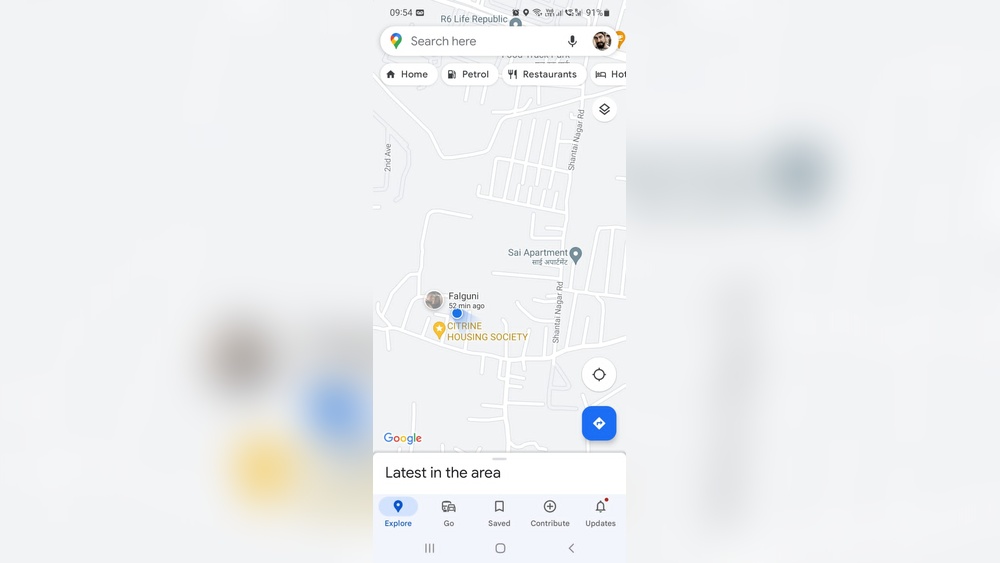
Have you ever tried to track a friend or find your way using Google Maps, only to realize the location isn’t updating? It’s frustrating when your map freezes, leaving you stuck with outdated info.
You might wonder why your Google Maps location won’t refresh or why someone’s live location suddenly stops moving. The truth is, several simple issues could be behind this glitch—ranging from weak signals and app settings to battery-saving modes or even GPS interference.
If you’re tired of guessing and want quick, easy fixes to get your location updates back on track, keep reading. This guide breaks down the common reasons why Google Maps isn’t updating your location and how you can solve them fast. Your next smooth, accurate navigation starts here.

Credit: www.youtube.com
Common Causes
Google Maps may not update your location due to several common reasons. These issues often stem from your device or connection settings. Understanding these causes can help you fix the problem quickly. Below are some typical factors that stop Google Maps from updating location accurately.
Device Power Issues
Your device needs enough power to update location regularly. A low battery or a device that is turned off will stop updates. Power-saving modes also limit background activity. These settings prevent Google Maps from refreshing your location. Make sure your device has enough charge and is not in power-saving mode.
Connectivity Problems
Google Maps relies on internet access to update your location. Weak Wi-Fi or cellular signals can block updates. Being in areas with poor network coverage causes delays or no location refresh. Stable internet connection is essential for accurate location tracking. Check your network strength if Google Maps is not updating.
Gps Signal Interference
GPS signals can be blocked or weakened by tall buildings, tunnels, or dense trees. Such interference leads to inaccurate or no location updates. Your device may struggle to get a clear GPS signal in crowded urban areas. Open spaces help GPS work better and improve location accuracy on Google Maps.
Airplane Mode Effects
Airplane mode turns off all wireless connections on your device. This disables GPS, Wi-Fi, and cellular signals. Without these connections, Google Maps cannot update your location. Ensure airplane mode is off to allow location services to work properly. This simple step often fixes location update issues.
App And Device Settings
App and device settings play a key role in how Google Maps updates your location. Incorrect settings can stop the app from tracking your position accurately. Many users overlook these settings, causing confusion when their location does not refresh.
Checking and adjusting these settings can often fix the problem quickly. Each setting controls how your device shares location data with Google Maps. Understanding these settings helps keep your location updates smooth and reliable.
Location Services Disabled
Location services must be turned on for Google Maps to work properly. If disabled, the app cannot access GPS or network data. This stops the app from updating your position in real time. Verify location services in your device’s main settings and enable them.
App Permissions
Google Maps needs permission to access location data, even in the background. Without this, the app cannot track your movement continuously. Check app permissions in your device settings and allow location access at all times. Denying permission leads to stale or missing location updates.
Battery Saver Impact
Battery saver modes restrict app activity to save power. This limits Google Maps’ ability to update location in the background. When battery saver is on, location updates may delay or stop. Turn off battery saver or add Google Maps to the whitelist for accurate tracking.
Background App Refresh
Background App Refresh allows Google Maps to update data while not in use. Disabling this stops the app from refreshing location in real time. Make sure Background App Refresh is enabled for Google Maps in your device’s settings. This keeps your location current even when the app is closed.
Vpn And Spoofing Effects
Using VPNs or location spoofing apps can confuse Google Maps. These tools change or hide your true location, causing inaccurate updates. Disable VPNs and spoofing apps to allow Google Maps to access your real position. This ensures precise and timely location tracking.
Troubleshooting Steps
When Google Maps does not update your location, simple fixes often solve the problem. Following clear troubleshooting steps helps restore accurate location tracking quickly. These steps ensure your device and app settings support real-time updates. Try each method to find what works best for your situation.
Check Internet Connection
A strong internet connection is essential for location updates. Verify your Wi-Fi or mobile data is active and stable. Switch between Wi-Fi and cellular data to test connectivity. Poor or no internet causes Google Maps to freeze location data.
Toggle Location Settings
Turn your device’s location service off and on again. This refreshes the GPS signal and corrects errors. Go to your device settings and disable location for a few seconds. Enable it back to allow Google Maps to access your position.
Restart Device
Restarting your phone clears temporary glitches and resets system functions. Power off your device completely, wait 10 seconds, then turn it on. This simple step often fixes stuck location problems in Google Maps.
Update Apps And Os
Running outdated software can cause location issues. Check for updates for Google Maps in your app store. Also, update your device’s operating system to the latest version. New updates improve app performance and GPS accuracy.
Clear App Cache
Cached data might interfere with location tracking. Go to your device’s app settings and clear Google Maps’ cache. This removes old data and forces the app to load fresh location information. It helps solve loading or update delays.
Review Notifications
Location sharing notifications impact updates. Make sure Google Maps has permission to send notifications. Check your notification settings and allow alerts from the app. Notifications often prompt location refresh and alert you to any problems.
Why Location Freezes
Location freezing in Google Maps can be frustrating. It stops showing your current position accurately. Understanding why this happens helps fix the issue quickly. Several reasons cause your location to freeze during navigation or sharing.
Last Known Location Displayed
Google Maps may show your last known location instead of updating in real time. This happens if your device loses GPS signal or internet connection. The app holds onto the last data it received until a new signal arrives. It helps avoid showing incorrect or blank locations.
Random Location Updates
Sometimes the location jumps randomly on the map. This is due to weak GPS signals or interference from buildings. The device tries to find your position but gets mixed data from satellites. Random updates confuse the app, causing it to freeze or lag temporarily.
No Movement Detected
The app may freeze if it detects no movement for a while. Google Maps assumes you are stationary and stops updating the location. This saves battery and reduces unnecessary data use. Moving your device or restarting the app can refresh the location tracking.
Tips For Location Sharing
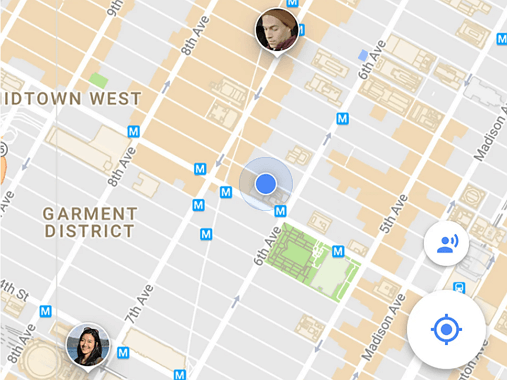
Sharing your location with friends or family on Google Maps helps keep everyone informed. Proper location sharing depends on accurate and timely updates. Small errors or settings can stop updates from working. Follow these tips to improve your location sharing experience.
Ensuring Continuous Updates
Keep your device connected to the internet through Wi-Fi or cellular data. Enable location services on your phone and allow Google Maps to access your location always. Turn off battery saver modes that limit app activity in the background. Check that Background App Refresh is on for Google Maps. These steps help your location update continuously without pauses.
Fixing Address Errors
Double-check the shared address for typos or mistakes. Use the exact place name or GPS coordinates to avoid confusion. Update saved places in Google Maps if the location has moved or changed. Correct addresses ensure accurate location sharing and reduce update delays.
Avoiding Common Pitfalls
Do not switch off your phone or put it in airplane mode while sharing location. Avoid using VPNs that may change your apparent location. Make sure Google Maps has permission to run in the background. Poor GPS signals can cause errors, so stay in open areas when possible. These simple actions prevent common issues with location updates.

Credit: support.google.com
Credit: www.imyfone.com
Frequently Asked Questions
Why Isn’t Someone’s Location Updating On Google Maps?
Someone’s location on Google Maps may not update due to poor signal, disabled location services, battery saver mode, outdated app, or GPS interference.
What Does It Mean If Someone’s Location Isn’t Refreshing?
Someone’s location isn’t refreshing due to poor signal, disabled location services, battery saver mode, device off, or app permission issues.
How Do I Get Google Maps To Update A Location?
Open Google Maps, select the location, and click “Suggest an edit. ” Update details and submit for review. Ensure strong internet and enabled location services.
Why Is My Son’s Location Sharing Not Updating?
Your son’s location may not update due to poor internet, disabled location services, battery saver mode, or app permission issues. Restart the device and update apps for best results.
Conclusion
Google Maps may not update location due to simple issues. Weak signals, disabled location settings, or battery saver modes often cause delays. Checking and fixing these settings usually helps restore updates. Restarting the device or updating the app can solve many problems.
Keep location permissions enabled for smooth tracking. Regularly ensure a strong internet connection for accuracy. These easy steps help Google Maps show your correct location again. Staying aware of these common causes saves time and frustration.