If your Apple Watch is acting up, locked, or you simply want to start fresh, knowing how to reset it can save you time and frustration. Whether you forgot your passcode or need to prepare the watch for a new user, resetting your Apple Watch is easier than you might think.
In this guide, you’ll discover clear, step-by-step methods to reset your Apple Watch safely and effectively. By the end, you’ll feel confident handling any reset situation and get your device running smoothly again. Keep reading—you’re just a few clicks away from mastering your Apple Watch reset.
Hard Restart Apple Watch
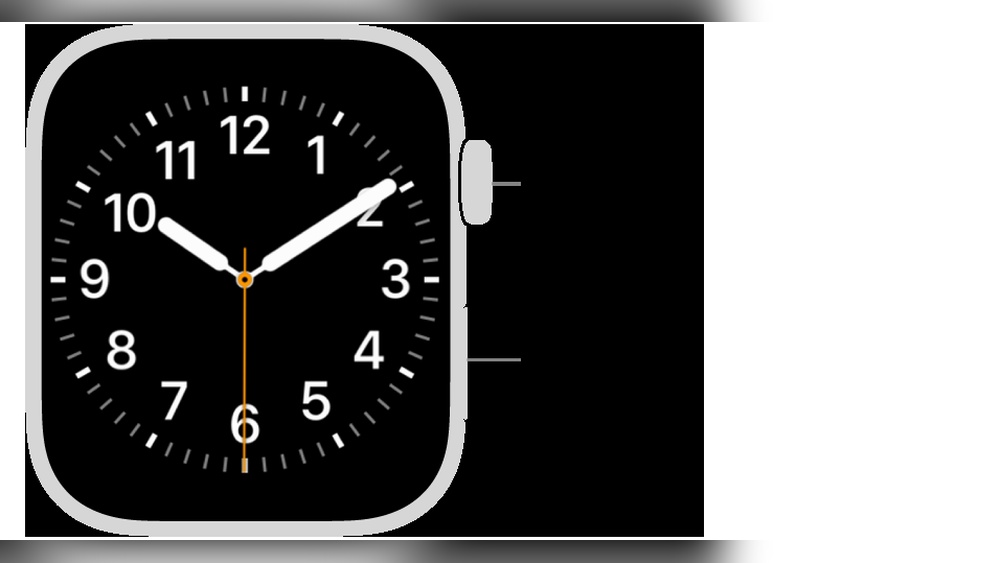
The Hard Restart Apple Watch is a simple method to fix minor problems. It forces the watch to turn off and on again. This can help when your watch is frozen or not responding. A hard restart does not delete your data. It is different from a full factory reset.
Steps For Hard Restart
- Press and hold both the Digital Crown and the side button at the same time.
- Keep holding the buttons until the Apple logo appears on the screen.
- Release both buttons when you see the logo.
Your Apple Watch will restart automatically. This process usually takes about 30 seconds.
When To Use Hard Restart
Use a hard restart if your watch is frozen or not responding. It also helps if apps are crashing or the screen is stuck. Avoid using it for normal problems. Try a normal restart first by turning the watch off and on. Use hard restart only when the watch does not respond to normal commands.
Credit: nexlam.it
Factory Reset Via Settings
Factory reset via settings is the easiest way to erase all data on your Apple Watch. This process restores the watch to its original state. Use it before selling or fixing issues that need a fresh start.
This reset deletes apps, music, and personal info. The watch returns to factory defaults. Make sure to back up important data first. The watch must be charged or on its charger to begin.
Navigating To Reset Options
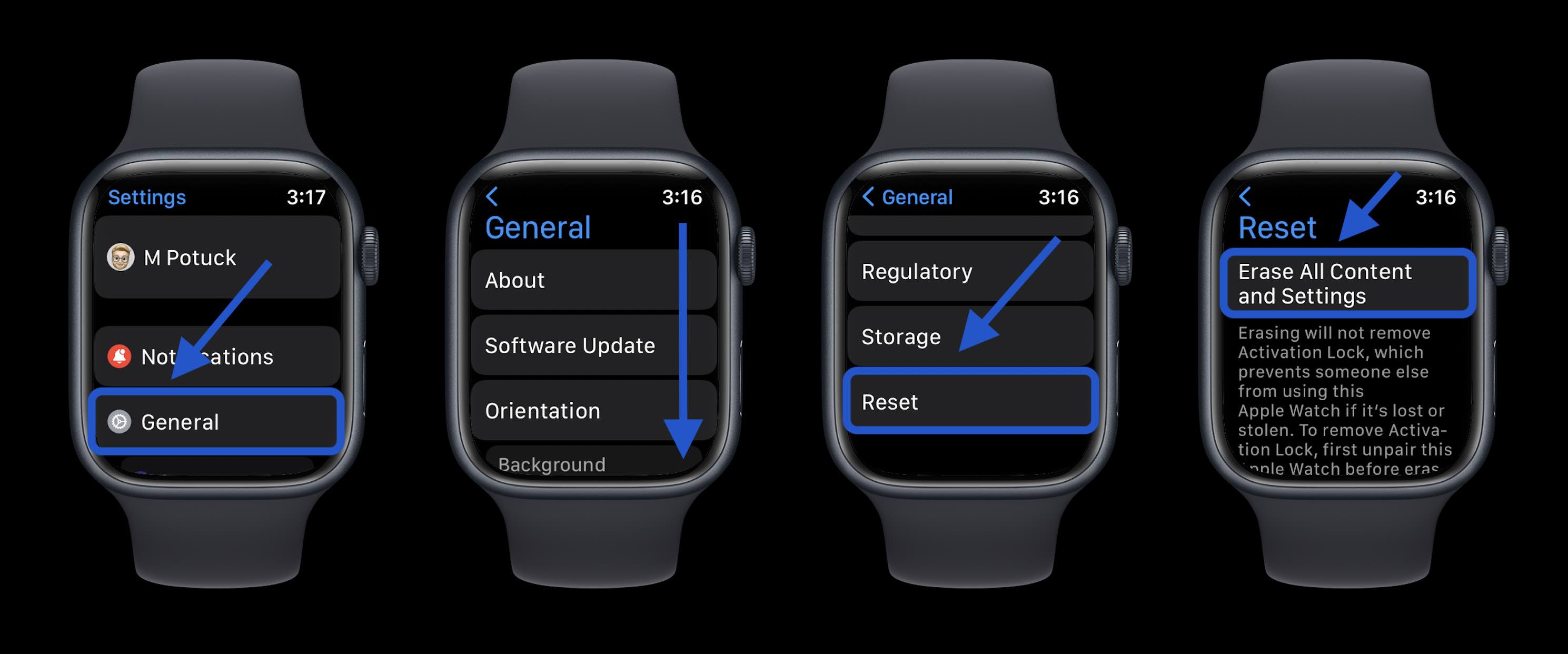
Start by opening the Settings app on your Apple Watch. Scroll down and tap on “General.” At the bottom of the list, find and select “Reset.” This section holds all reset options. Choose it to continue the factory reset process.
Erasing All Content And Settings
Inside the Reset menu, tap “Erase All Content and Settings.” This action prepares your watch for a full wipe. The watch will remove all data and settings. This step cannot be undone once confirmed. The watch may restart during the process.
Entering Passcode And Confirmation
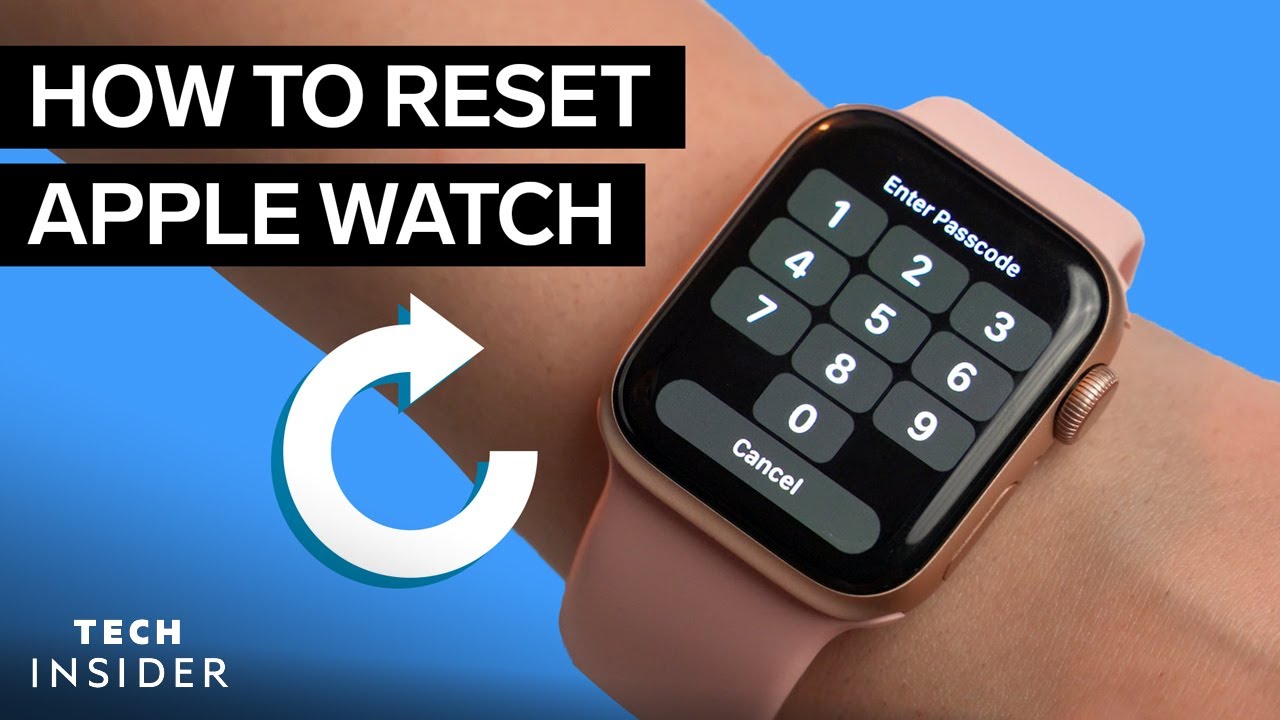
You need to enter your passcode to authorize the reset. This protects your data from accidental deletion. After typing the passcode, the watch asks for confirmation. Tap “Erase All” to start the reset. The watch will erase all data and reboot like new.
Reset Without Passcode
Resetting an Apple Watch without a passcode is possible through specific steps. This process helps when you forget your passcode or cannot access the watch normally. It erases all data and restores the watch to factory settings. Follow the methods below carefully to reset your Apple Watch without a passcode.
Using Charger And Buttons
First, place your Apple Watch on its charger. Keep it connected during the reset process.
Press and hold the side button until the power options screen appears. Do not release the button yet.
Next, press and hold the Digital Crown. Hold both buttons until the “Erase all content and settings” screen shows.
Erase All Content Prompt
On the screen, tap the “Erase all content and settings” option. This will start the factory reset.
You may see a prompt to confirm the reset. Tap “Reset” to proceed with erasing your data.
Confirming Factory Reset
After tapping reset, the watch asks you to confirm again. Tap “Reset” once more to confirm.
The Apple Watch will begin erasing all content and settings. This process may take a few minutes.
Once done, the watch will restart and show the welcome screen. Your Apple Watch is now reset without a passcode.
Unpairing Apple Watch
Unpairing your Apple Watch is an important step before resetting it. This process disconnects the watch from your iPhone and removes settings linked to your Apple ID. It ensures the watch is ready for a fresh setup or a new user. Following the right steps makes unpairing smooth and secure.
Using Iphone Watch App
Open the Watch app on your iPhone. Tap on your watch at the top of the screen. Select the “i” icon next to your watch name. Tap “Unpair Apple Watch.” Confirm your choice by entering your Apple ID password. This unpairs the watch and backs up its data to your iPhone. Wait until the process finishes before moving on.
Removing Activation Lock
Activation Lock keeps your watch safe from unauthorized use. Unpairing automatically disables this lock. You must enter your Apple ID password to turn it off. This step is necessary to allow the watch to be used by another person. Check that Activation Lock is removed before selling or giving away your watch.
Preparing For New User
After unpairing, the watch resets to factory settings. All personal data and apps get erased. The watch shows the welcome screen ready for setup. This makes it easy for a new user to start fresh. Keep the watch charged during this process to avoid interruptions.
Reset Without Paired Iphone
Resetting an Apple Watch without its paired iPhone can be necessary in several situations. Maybe you forgot your iPhone, or you bought a second-hand watch. You can still reset the Apple Watch directly from the device. This lets you erase all settings and data to start fresh. Below are two simple methods to reset your Apple Watch without needing the paired iPhone.
Direct Reset On Apple Watch
Start by opening the Settings app on your Apple Watch. Scroll down and tap on General. Next, scroll to the bottom and choose Reset. Select Erase All Content and Settings. You may need to enter your passcode if asked. Confirm by tapping Erase All again. This process wipes all data and restores factory settings. It works well if you remember your passcode and want a clean start.
Using Charger And Button Combination
This method helps if you forgot your passcode and cannot unlock the watch. Place your Apple Watch on its charger. Press and hold the side button until the power options appear. Then, press and hold the Digital Crown until the Erase All Content and Settings option shows. Tap Reset, then tap it again to confirm. The watch will erase all data and reset itself. This method is useful for locked watches with no paired iPhone nearby.

Credit: www.youtube.com
Pairing After Reset
After resetting your Apple Watch, pairing it again with your iPhone is essential. Pairing connects your watch to your phone, allowing features like notifications, apps, and health tracking to work. The process is simple and quick, but some may face issues. Follow clear steps for a smooth pairing experience.
Steps To Pair Again
Turn on your Apple Watch by pressing the side button. Bring your iPhone close to the watch. A pairing screen appears on your phone. Tap “Continue” or open the Apple Watch app. Follow on-screen instructions to complete the pairing. Choose your settings and sign in with your Apple ID. Wait for the sync to finish before using your watch.
Troubleshooting Pairing Issues
Make sure Bluetooth is on and your iPhone is near the watch. Restart both devices to fix minor glitches. Check your iPhone’s software is up to date. Reset network settings if the watch does not connect. Forget the watch on your iPhone and try pairing again. If problems continue, contact Apple Support for help.
Tips For Smooth Reset
Resetting your Apple Watch can solve many issues and prepare it for a fresh start. A smooth reset requires some simple steps. These tips help avoid problems during the reset process. Follow them for the best results and to keep your data safe.
Backing Up Data
Backup your Apple Watch data before resetting. Your watch automatically backs up to your paired iPhone. Make sure your iPhone has a recent backup in iCloud or on your computer. This keeps your health, app data, and settings safe. You can restore this information after the reset.
Keeping Devices Close
Keep your Apple Watch and iPhone close during the reset. A strong connection helps the devices communicate without interruptions. This is important for unpairing and backing up data. Avoid moving away or turning off Bluetooth and Wi-Fi during the reset.
Ensuring Battery Charge
Charge your Apple Watch and iPhone before starting. A low battery can stop the reset process. Both devices need enough power to complete the task. Aim for at least 50% battery or keep them on chargers while resetting.
Credit: www.youtube.com
Frequently Asked Questions
How Can I Hard Reset My Apple Watch?
Press and hold both the Digital Crown and side button simultaneously. Release when the Apple logo appears. This performs a hard reset, restarting the Apple Watch without erasing data.
How Do I Reset My Watch And Pair Again?
Open Settings on your watch, tap General > Reset, then tap Erase All Content and Settings. Confirm and wait for unpairing. After unpairing, pair your watch with your iPhone again.
How Do I Reset My Apple Watch To A New User?
Open the Watch app on the paired iPhone, tap your watch, then select “Unpair Apple Watch. ” Enter the Apple ID password to remove Activation Lock and erase all data. Alternatively, reset directly on the watch via Settings > General > Reset > Erase All Content and Settings.
How To Factory Reset Apple Watch Without Passcode?
Place your Apple Watch on its charger. Hold the side button until power options appear. Press and hold the Digital Crown until “Erase all content and settings” shows. Tap Reset and confirm to factory reset without a passcode.
Conclusion
Resetting your Apple Watch is simple and useful in many situations. Follow the steps carefully to avoid losing important data. Use the method that fits your problem best, whether it’s a soft restart or a full factory reset. Always make sure your watch is charged before starting the process.
After resetting, you can set up your watch again or give it to a new user. With these easy steps, your Apple Watch will work like new in no time.