Is your internet crawling when you need it most? Slow internet speed at home can turn simple tasks into frustrating experiences.
You might find yourself waiting endlessly for pages to load, videos to buffer, or files to download. But don’t worry—fixing this problem could be easier than you think. In this guide, you’ll discover straightforward steps to boost your internet speed and enjoy a smoother online experience.
Keep reading to learn how small changes in your setup and habits can make a big difference in your connection quality.
Quick Restarts
Quick restarts often fix slow internet speed at home. Restarting clears temporary glitches that slow your connection. It refreshes your network and devices. This simple step solves many common issues without hassle.
Restart Modem And Router
Unplug your modem and router from power. Wait for about 30 seconds. Plug them back in and wait for lights to stabilize. This resets your network equipment and clears errors. It often improves your internet speed immediately.
Reboot Devices
Turn off your computer, phone, or tablet. Wait a few seconds, then turn it back on. Rebooting clears temporary system bugs that slow down internet access. It helps devices reconnect fresh to your network for better speed.
Check Cable Connections
Look at all cables linking your modem, router, and devices. Make sure each cable is firmly plugged in. Check for any damage or wear on cords. Loose or damaged cables can cause slow speeds or disconnects. Replace faulty cables to keep your internet stable.
Credit: www.broadbandsearch.net
Optimize Wi-fi Setup
Optimizing your Wi-Fi setup can greatly improve slow internet speeds at home. Small changes make a big difference in signal strength and connection stability. A well-set Wi-Fi system helps devices connect faster and stay connected longer. Follow these simple steps to get the best performance from your home network.
Reposition The Router
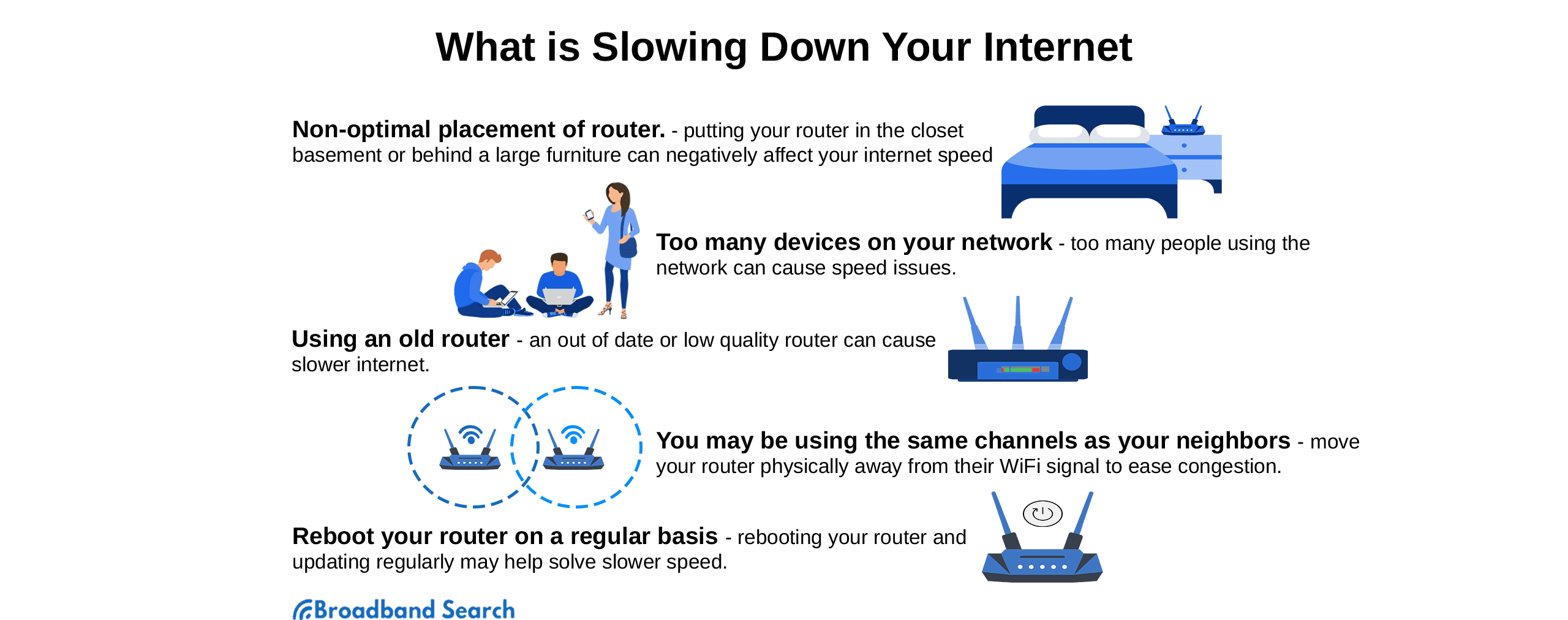
Place your router in a central spot in your home. Avoid corners, walls, and floors. Keep it high up on a shelf or table. Remove objects that block signals, like thick furniture or appliances. This allows the Wi-Fi signal to spread evenly across your space.
Reduce Device Distance
Keep your devices closer to the router for stronger signals. The farther a device is, the weaker the connection becomes. Try moving phones, laptops, or smart TVs nearer to the router. This reduces signal loss and boosts internet speed.
Switch To Ethernet
Use an Ethernet cable to connect devices directly to the router. Wired connections are faster and more reliable than Wi-Fi. This is especially helpful for desktop computers or smart TVs. Ethernet avoids interference and signal drops common in wireless networks.
Disconnect Unused Devices
Turn off or disconnect devices not in use. Each connected device shares the internet bandwidth. Too many devices online at once slow down the speed for everyone. Removing unused gadgets frees up bandwidth and improves performance.
Update Firmware And Drivers
Keep your router’s firmware and device drivers up to date. Manufacturers release updates to fix bugs and improve speed. Check your router’s settings or website for the latest firmware. Update your computer’s network drivers regularly for the best connection.
Change Wi-fi Channel
Switch your router to a less crowded Wi-Fi channel. Many routers use default channels that get congested. Changing the channel reduces interference from nearby networks. Use your router’s settings to scan for the best channel and apply it.
Device And Software Care
Keeping your devices and software in good shape helps improve internet speed. Over time, caches fill up, malware creeps in, and outdated software slows down connections. Simple care routines can free up resources and boost performance. Below are some easy steps to maintain your device and software health.
Clear Browser Cache
Browsers save temporary files called cache to load sites faster. Too much cache can slow browsing and internet speed. Clear your cache regularly to remove old files. This frees up space and speeds up page loading.
Scan For Malware
Malware can use your internet without your knowledge. It also makes your device slower. Use trusted antivirus software to scan your device often. Remove any threats to keep your connection clean and fast.
Update Software And Drivers
Software updates fix bugs and improve security. Outdated drivers can cause slow internet or connection drops. Check for updates on your operating system and network drivers. Install them to ensure smooth, fast internet access.
Check Storage Space
Low storage space can reduce device speed and affect internet use. Delete unused files and apps to free space. A device with enough storage runs better and handles internet tasks faster.
Credit: www.testmyspeed.com
Advanced Solutions
Advanced solutions target deeper problems that basic fixes can’t solve. These steps require some technical knowledge but can greatly improve your internet speed. Try these methods if simple troubleshooting does not help.
Use A Vpn Wisely
A VPN can sometimes improve speed by avoiding traffic congestion. Choose a server location close to you for better results. Avoid free VPNs as they often slow down your connection. Use paid VPNs with reliable speed and privacy features.
Upgrade Internet Plan Or Provider
Internet speeds depend on your plan and provider. Check if your current plan meets your usage needs. Upgrade to a faster plan to get better performance. Compare providers in your area for better service or deals. Sometimes switching providers improves speed and reliability.
Replace Old Hardware
Old modems and routers can limit internet speed. Check the age and specifications of your devices. Buy newer models that support higher speeds and modern standards like Wi-Fi 6. Replace worn-out cables and connectors for stable connections. New hardware often boosts overall network performance.
Credit: uk.norton.com
Frequently Asked Questions
How Do I Fix My Slow Internet Speed?
Restart your modem, router, and devices. Disconnect unused gadgets, move closer to the router, or use Ethernet. Update firmware, clear cache, scan for malware, and consider upgrading your plan or hardware.
How Can I Boost My Internet Speed At Home?
Restart your modem and devices, disconnect unused gadgets, move closer to the router, use Ethernet, update firmware, clear cache, and scan for malware. Upgrade your plan or hardware if speeds stay slow.
Why Is The Internet In My House So Slow?
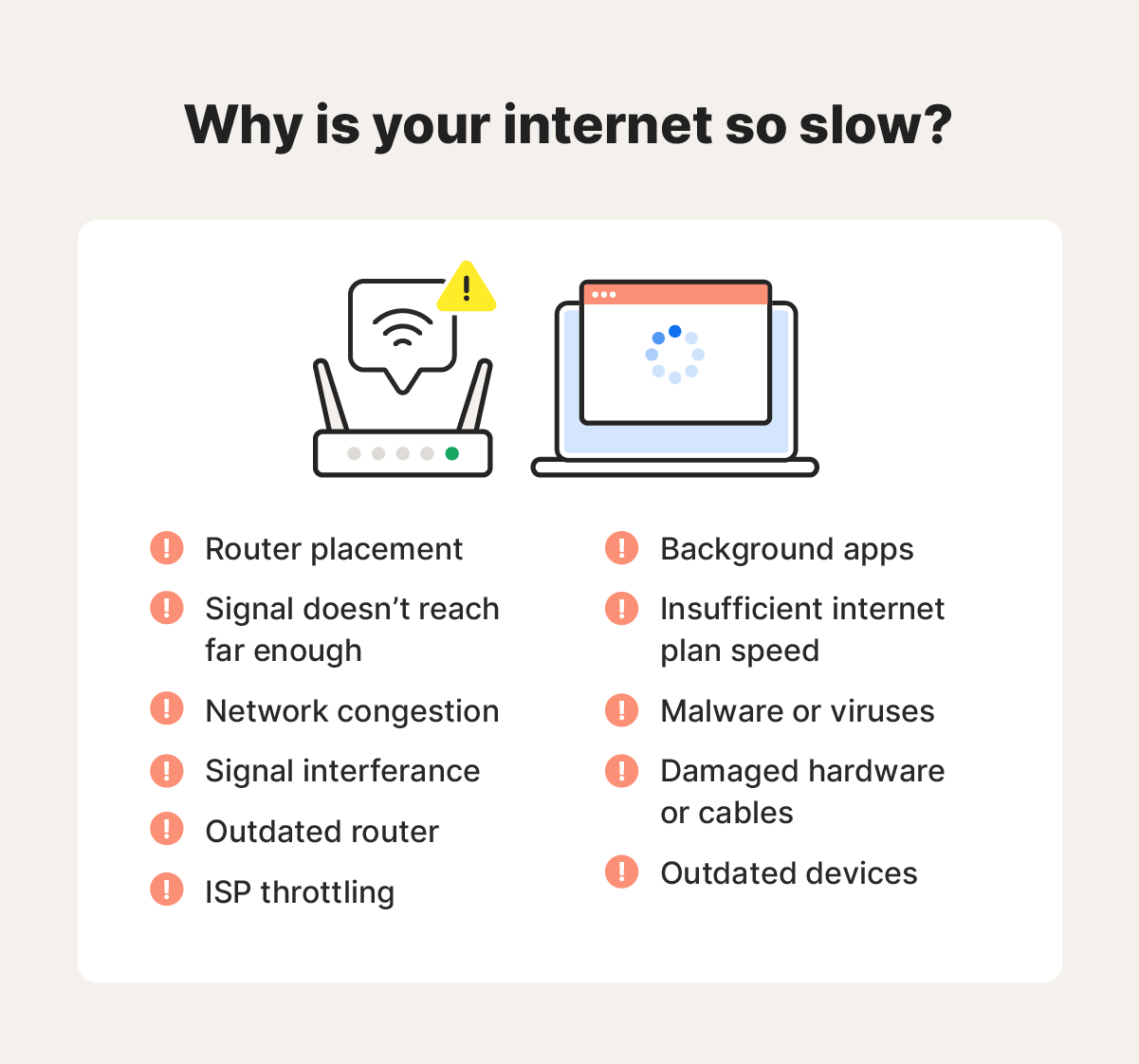
Slow internet often results from outdated hardware, network congestion, poor router placement, or malware. Restart devices, reduce connected gadgets, move closer to the router, update firmware, clear cache, and consider upgrading your plan to improve speed.
How Do I Figure Out What Is Slowing Down My Internet?
Restart your modem, router, and devices first. Disconnect unused gadgets, move closer to the router, use Ethernet, and scan for malware. Update firmware, clear browser cache, and optimize router placement. Consider upgrading your plan or hardware if problems persist.
Conclusion
Slow internet can disrupt daily tasks and cause frustration. Simple actions like restarting your modem or moving closer to the router often help. Disconnecting unused devices frees up bandwidth for important activities. Keeping your router updated and clearing your device’s cache improves performance too.
Sometimes, a better plan or new provider becomes necessary. Regular checks and small adjustments keep your home internet running smoothly. Stay patient and try these steps to enjoy faster, more reliable internet every day.