
Mastering copy and paste on your Mac can save you precious time and boost your productivity instantly. Whether you’re moving text, files, or images, knowing the right shortcuts turns a simple task into a smooth, effortless flow.
Imagine quickly duplicating your favorite quotes, organizing folders, or editing documents without fumbling through menus. In this guide, you’ll discover easy, step-by-step ways to copy, cut, and paste like a pro on your Mac. Ready to unlock these powerful shortcuts and make your daily work easier?
Keep reading to become a Mac copy-paste expert in no time!

Credit: smart.dhgate.com
Basic Copy And Paste
Basic copy and paste are essential tasks on any Mac. They help you move or duplicate text, images, files, and more. Knowing these simple commands saves time and effort. Below are the basics you need to get started.
Copying Text And Items
To copy on a Mac, first select the text or item. Use your mouse or trackpad to highlight the desired content. Then press Command (⌘) + C. This action copies the selected content to your clipboard. You can copy text from documents, web pages, or files from Finder.
Pasting Content
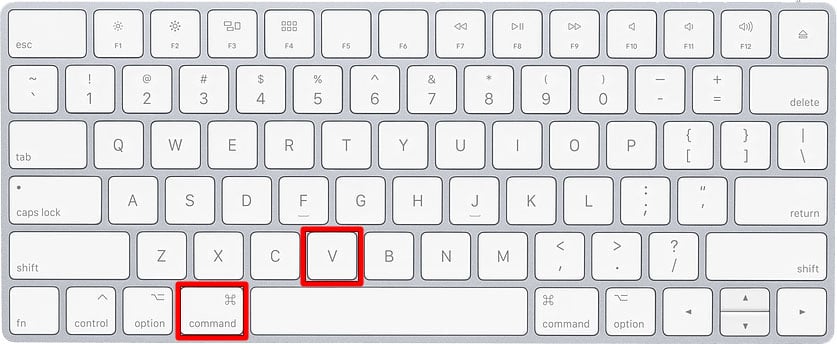
After copying, place your cursor where you want to paste the content. Press Command (⌘) + V to insert the copied item. The content appears exactly where your cursor is. You can paste text into documents, emails, or text fields. Pasting works for files too, in Finder or desktop.
Cutting Items
Cutting removes the selected item and saves it to the clipboard. Select the text or item to cut. Press Command (⌘) + X. The item disappears from its original place. You can then paste it elsewhere with Command + V. Cutting works best for moving content within documents or Finder.
Credit: www.businessinsider.com
Keyboard Shortcuts
Keyboard shortcuts on a Mac make copying and pasting quick and simple. They help you work faster without using a mouse. Learning these shortcuts saves time and effort. Here are the main keyboard shortcuts for copy, paste, cut, and undo.
Command-c For Copy
Press Command and C keys together to copy selected text or files. This action saves a copy to the clipboard. You can then paste it somewhere else. Always select the item before pressing Command-C.
Command-v For Paste
Use Command and V keys to paste what you copied. Place the cursor where you want the item to appear first. This shortcut inserts the clipboard content quickly. It works for text, images, and files.
Command-x For Cut
Cut removes the selected item and saves it to the clipboard. Press Command and X keys at the same time. This shortcut is useful to move text or files. Paste it elsewhere after cutting.
Command-z To Undo
Undo reverses your last action. Press Command and Z keys to undo typing, deleting, or moving. This shortcut helps fix mistakes fast. Use it right after the error to restore your work.
Paste Without Formatting
Pasting without formatting helps keep your text clean and consistent. It removes fonts, colors, and other styles from copied content. This is useful when you want your text to match the current document style. Mac offers a simple way to paste without carrying over formatting.
Option-shift-command-v Shortcut
Press Option + Shift + Command + V to paste without formatting. This shortcut pastes the copied text to match the style of your current document. It works in most Mac applications like Pages, Notes, and Mail. Using this shortcut saves time by avoiding manual reformatting.
Remember, this method only pastes plain text. It removes all colors, fonts, and links. The pasted content blends perfectly with your existing text style.
When To Use Paste And Match Style
Use Paste and Match Style when you want uniform text appearance. It is helpful when adding text from websites, emails, or other sources with different styles. This keeps your document looking professional and tidy.
This option is great for reports, emails, or blog posts. It prevents awkward font changes and color clashes. Always choose this paste method to maintain a neat and readable document.
Credit: www.hellotech.com
Copying And Moving Files
Copying and moving files on a Mac helps organize your data quickly. These actions let you duplicate or relocate files without losing them. Knowing simple methods saves time and effort. Mac’s Finder makes file management easy and intuitive. Below are clear steps for copying and moving files using Finder and shortcuts.
Copying Files In Finder
Open Finder and find the file or folder to copy. Click the item once to select it. Press Command (⌘) + C on your keyboard. This copies the selected file to the clipboard. Go to the folder where you want the copy. Press Command (⌘) + V to paste the file there. The file will appear in the new location. You keep the original file where it was. This method is simple and safe for duplicating files.
Moving Files With Shortcut
Moving files means cutting from one place and pasting in another. Select the file or folder in Finder. Press Command (⌘) + C to copy it first. Then, open the destination folder. Instead of normal paste, press Option (⌥) + Command (⌘) + V. This command moves the file, removing it from the original spot. Use this shortcut to avoid dragging files manually. It works faster and reduces errors.
Selecting Items
Selecting items on a Mac is the first step to copying and pasting. You must highlight the content or files before you copy them. Selection works for text, images, files, and folders. The Mac offers simple ways to select what you need quickly and accurately.
Using Mouse To Select
To select text with a mouse, click and hold at the start. Drag the cursor over the text you want. Release the mouse button to finish the selection.
For files or folders, single-click an item to select it. To select multiple items, hold the Command key and click each one. This lets you choose non-adjacent files.
Click and drag around several items to select them all at once. This works well in Finder for selecting groups of files.
Selecting All Items
To select all text in a document, press Command + A. This highlights everything instantly.
In Finder, Command + A selects all files and folders in the current window. This saves time when you want to copy or move everything.
Select All works in many Mac apps, including browsers, text editors, and mail clients. It is a powerful shortcut to quickly grab all content.
Right-click Copy And Paste
Right-click copy and paste offers a quick way to manage text and files on a Mac. Instead of using keyboard shortcuts, you can access copy and paste commands directly through a menu. This method works well for users who prefer using the mouse or trackpad. It simplifies the process, especially for beginners.
Context Menu Options
Right-clicking on selected text or files opens a context menu. This menu shows options like Copy, Cut, and Paste. Choosing Copy saves the selected item to the clipboard. Paste inserts the copied item where you click next. Cut removes the item and prepares it to be moved elsewhere. These options make managing files and text easy and clear.
Using Control-click
If your mouse or trackpad does not have a right-click button, use Control-click. Hold the Control key and click on the item. This action opens the same context menu as a right-click. You can then select Copy or Paste from the options. Control-click is a helpful alternative for Macs with single-button devices.
Troubleshooting Copy And Paste
Copying and pasting on a Mac usually works smoothly. Sometimes, it stops working or behaves oddly. Troubleshooting copy and paste issues helps fix these problems fast. This section covers common issues and easy fixes to get copy-paste back to normal.
Common Issues
Copy and paste may fail if the clipboard is full or corrupted. Sometimes, the keyboard shortcuts do not respond. Certain apps might block copying or pasting content. Another problem is when copied content does not match the pasted format. Occasionally, the Mac system needs a restart to clear temporary glitches.
Fixes And Tips
Restart your Mac to refresh system processes and clear clipboard data. Use the Activity Monitor to quit the “pboard” process, which handles the clipboard. Check that the keyboard shortcuts use the Command key, not Control. Clear clipboard manually by copying a small blank space. If one app blocks copy-paste, try copying from another app.
Update macOS to the latest version for improved clipboard stability. Avoid copying large files or complex data that may overload the clipboard. Use the “Paste and Match Style” shortcut (Option-Shift-Command-V) to fix formatting issues. If problems persist, reset the NVRAM or PRAM to fix hardware-level clipboard errors.
Frequently Asked Questions
How Do You Copy And Paste On A Mac Keyboard?
To copy on a Mac, press Command (⌘) + C. Paste with Command (⌘) + V. Cut using Command (⌘) + X. Use Option + Shift + Command + V to paste without formatting. Select text or files before using these shortcuts.
How Do I Copy And Paste With My Keyboard?
To copy and paste with your keyboard, select the content, press Ctrl+C to copy, then Ctrl+V to paste. Use Ctrl+X to cut. This works on Windows; on Mac, use Command instead of Ctrl.
How To Change Ctrl+c And Ctrl+v In Mac?
To change Ctrl+C and Ctrl+V on Mac, remap shortcuts using System Preferences > Keyboard > Shortcuts. Customize commands there.
How To Copy And Paste On A Mac With No Mouse?
Select the text using keyboard (Shift + arrow keys). Press Command + C to copy, then Command + V to paste without a mouse.
Conclusion
Copying and pasting on a Mac is simple and quick. Use Command-C to copy and Command-V to paste. To cut, press Command-X, then paste with Command-V. For pasting without changing style, try Option-Shift-Command-V. These shortcuts save time and make editing easier.
Practice them to feel confident using your Mac. Remember, selecting text or files is the first step. With these tips, copying and pasting becomes natural. Keep this guide handy for easy reference anytime.