Struggling to copy and paste on your Chromebook? You’re not alone.
Whether you’re trying to move text, images, or files, mastering this simple skill can save you loads of time and frustration. Imagine being able to quickly grab anything you need and place it exactly where you want with just a few clicks or keyboard taps.
In this guide, you’ll discover easy methods and handy shortcuts that will make copying and pasting on your Chromebook feel natural and effortless. Ready to boost your productivity and work like a pro? Keep reading to unlock the secrets to seamless copying and pasting!

Credit: www.wikihow.com
Keyboard Shortcuts
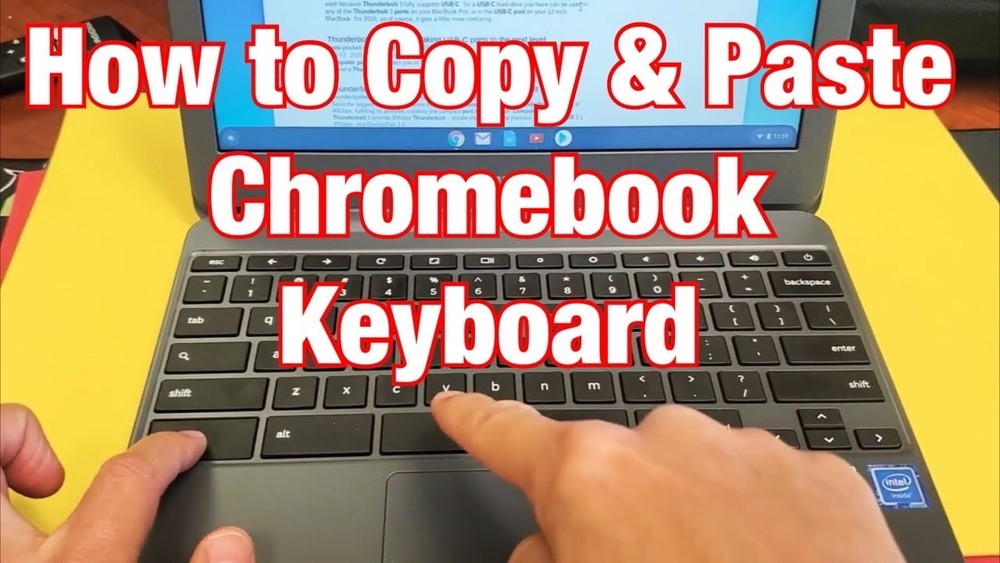
Keyboard shortcuts make copying and pasting on a Chromebook fast and easy. These shortcuts save time and help you work without switching between keyboard and mouse. Knowing these simple commands improves your productivity.
Copy And Paste Basics
To copy text or files, highlight the item and press Ctrl + C. This saves a copy to the clipboard. To paste, place the cursor where you want the content and press Ctrl + V. The copied content appears instantly.
This method works in most apps and websites on your Chromebook. It is the quickest way to duplicate text or files without extra steps.
Cut And Paste
Cutting removes the selected text or files from their original location. Highlight the item and press Ctrl + X. This cuts the content and stores it on the clipboard.
Next, move the cursor to the new location and press Ctrl + V to paste. This moves the content instead of copying it, saving space and avoiding duplicates.
Paste Without Formatting
Sometimes copied text carries unwanted fonts or colors. To paste plain text without formatting, press Ctrl + Shift + V. This pastes only the text, matching the style of your destination.
This shortcut is helpful when copying from websites or documents with different styles. It keeps your work clean and consistent.
Trackpad And Mouse Methods
Using the trackpad or a mouse on a Chromebook makes copying and pasting simple. These methods are helpful for users who prefer not to use keyboard shortcuts. They offer a quick way to select, copy, and paste text or files directly on the screen.
Both trackpad and mouse actions rely on right-click menus or touchscreen taps. These menus show the options to copy or paste the chosen content. This method works well for text, images, links, and files inside apps or the browser.
Right-click Copy And Paste
Highlight the text or file you want to copy. Use two fingers to tap the trackpad or click the right mouse button. A menu will appear with different options.
Select “Copy” to save the item to the clipboard. Move the cursor where you want to paste. Right-click again and choose “Paste” from the menu. The copied content will appear there.
This method works anywhere on your Chromebook. It is easy and does not need any keyboard use. Perfect for quick editing or moving small pieces of data.
Using The Touchscreen
Touchscreen Chromebooks allow copying and pasting with taps. Tap and hold on the text or file to select it. A menu will pop up with choices including “Copy.”
Tap “Copy” to store the content. Next, tap and hold where you want to paste. The same menu will show the “Paste” option.
Tap “Paste” to insert the copied text or file. This method feels natural on touch devices. It makes editing on the go fast and smooth.
Clipboard History
The clipboard on a Chromebook stores the items you copy temporarily. Clipboard history is a feature that saves multiple copied items. It lets you access and reuse older copied texts or images. This feature makes copying and pasting more flexible and efficient. You can quickly switch between different copied items without recopying them.
Accessing Clipboard History
Press the Search key and the V key together to open clipboard history. The Search key is usually where the Caps Lock key is on other keyboards. A small window will appear showing your recent copied items. You can scroll through this list to see all saved items. Clipboard history keeps multiple entries, so you have more options to paste.
Pasting From Clipboard History
After opening clipboard history, click the item you want to paste. The selected item will appear at your cursor’s location. You can paste text, links, or images saved in the clipboard. This method avoids recopying content multiple times. It saves time and helps keep your workflow smooth. Using clipboard history is useful for working with several copied items.

Credit: www.youtube.com
Copying Files And Images
Copying files and images on a Chromebook is simple and useful. You can move documents, pictures, and other items easily. This section shows how to copy files using the Files app and how to copy images from websites. Follow these steps to handle your files and images like a pro.
Copying Files In Files App
Open the Files app on your Chromebook. Find the file or folder you want to copy. Click once to select it. Press Ctrl + C to copy the file. Go to the location where you want to paste it. Press Ctrl + V to paste the file there.
You can also right-click the file with two fingers on the trackpad. Choose “Copy” from the menu. Then right-click in the destination folder and select “Paste.” This method works well for moving multiple files quickly.
Copying Images From Websites
Find the image you want to copy on a website. Tap and hold the image with your finger or right-click it with two fingers on the trackpad. Choose “Copy image” from the menu. Now, go to the place where you want to paste it, like a document or email.
Press Ctrl + V to paste the image. You can also right-click and select “Paste” to insert the image. This method saves time if you want to use pictures from the web in your work or messages.
Troubleshooting Copy And Paste
Copying and pasting on a Chromebook usually works smoothly. Sometimes, issues may occur that disrupt this simple process. Troubleshooting copy and paste problems helps you get back to work fast. Identifying the cause of the problem is the first step in fixing it.
Issues In Linux Apps
Linux apps on Chromebooks sometimes block copy and paste. Clipboard sharing between Chrome OS and Linux may not work properly. You might find that Ctrl + C and Ctrl + V do not respond inside Linux apps. Some apps handle clipboard data differently, causing confusion.
Linux container settings can affect clipboard access. Permissions might be restricted, stopping data transfer. Clipboard synchronization issues between the Linux environment and Chrome OS also cause problems. These issues are common in Linux apps but can be fixed.
Common Fixes
Restarting your Chromebook can resolve many clipboard issues. It refreshes system processes and clears temporary glitches. Ensure your Chromebook software is up to date to avoid compatibility problems. Updates often include fixes for copy and paste bugs.
For Linux apps, check container settings to allow clipboard sharing. Open Chromebook settings, then Linux (Beta), and look for clipboard options. Restart the Linux container to apply changes. This step often restores copy and paste function.
Try using keyboard shortcuts carefully: Ctrl + C to copy, Ctrl + V to paste. If shortcuts fail, use the right-click menu with a two-finger tap on the trackpad. Clear clipboard history if it becomes cluttered by pressing Search + Shift + V and deleting items.
Tips For Efficient Copy And Paste
Efficient copy and paste on a Chromebook saves time and effort. Knowing quick methods helps you work faster. Simple tricks can make your tasks smoother and reduce mistakes. Use these tips to improve your copying and pasting skills.
Using Clipboard Manager
The Clipboard Manager stores multiple items you copy. Press Search + V to open it. You can see a list of recent copied texts and images. Select any item to paste it instantly. This tool is handy when you need to reuse several clips.
It keeps your copied content safe until you restart your Chromebook. The Clipboard Manager helps avoid copying the same text repeatedly. Use it to manage your copied data efficiently.
Keyboard Shortcut Combinations
Keyboard shortcuts speed up copy and paste tasks. Highlight the text or file first. Press Ctrl + C to copy the selection. Use Ctrl + X to cut and remove the item.
Move the cursor to the paste spot. Press Ctrl + V to paste the copied content. To paste without formatting, press Ctrl + Shift + V. This pastes plain text only, matching your document style.
These shortcuts reduce clicks and keep your hands on the keyboard. Practice them to work faster on your Chromebook.

Credit: mashable.com
Frequently Asked Questions
How Do I Copy And Paste On A Chromebook?
To copy on a Chromebook, highlight text and press Ctrl + C. To paste, press Ctrl + V. Right-click (two-finger tap) also works. Use Ctrl + Shift + V to paste without formatting. Press Search + V to access clipboard history and paste older items.
How Do I Copy And Paste With The Keyboard?
To copy on a Chromebook, press Ctrl + C after selecting text or files. Paste using Ctrl + V where needed. Use Ctrl + Shift + V to paste without formatting. Access clipboard history with Search + V for recent items.
Right-click (two-finger tap) also offers copy and paste options.
What Does Ctrl+alt+z Do On A Chromebook?
Ctrl+Alt+Z on a Chromebook opens the Undo History. It lets you review and revert recent changes quickly.
Why Is Copy And Paste Not Working On Chromebook?
Copy and paste may fail on a Chromebook due to incorrect shortcuts, disabled clipboard permissions, or app-specific restrictions. Ensure you use Ctrl+C to copy and Ctrl+V to paste, or right-click with two fingers on the trackpad. Restarting the device can also fix temporary glitches.
Conclusion
Copying and pasting on a Chromebook is simple and quick. Use keyboard shortcuts like Ctrl + C and Ctrl + V to save time. The trackpad or touchscreen also lets you copy and paste with ease. Remember, Ctrl + Shift + V helps paste without formatting.
Don’t forget about clipboard history with Search + V to access old items. Practice these steps, and copying on your Chromebook will feel natural. Keep trying, and you’ll get faster every day. This skill makes working on your Chromebook much easier.