Thinking about canceling your Paramount Plus subscription but not sure how to do it? You’re not alone.
Many people sign up for streaming services and later decide they want to stop. The good news is, canceling Paramount Plus is straightforward once you know the right steps. Whether you subscribed directly through the Paramount Plus website or used a third-party platform like Apple, Roku, or Amazon, this guide will walk you through exactly how to cancel your subscription quickly and without hassle.
Keep reading to take control of your account and avoid any unexpected charges!
Cancel Via Paramount+ Website
Cancelling your Paramount+ subscription directly through the website is simple and fast. This method works for most users who subscribed via the Paramount+ site. It lets you control your subscription without needing another device or app.
Follow the steps below to cancel your Paramount+ membership quickly. Make sure you use a web browser on your phone, tablet, or computer.
Sign In To Your Account
Open a browser and visit paramountplus.com. Enter your email and password to sign in. Use the credentials you created when signing up. Without signing in, you cannot access your subscription details.
Access Subscription Settings
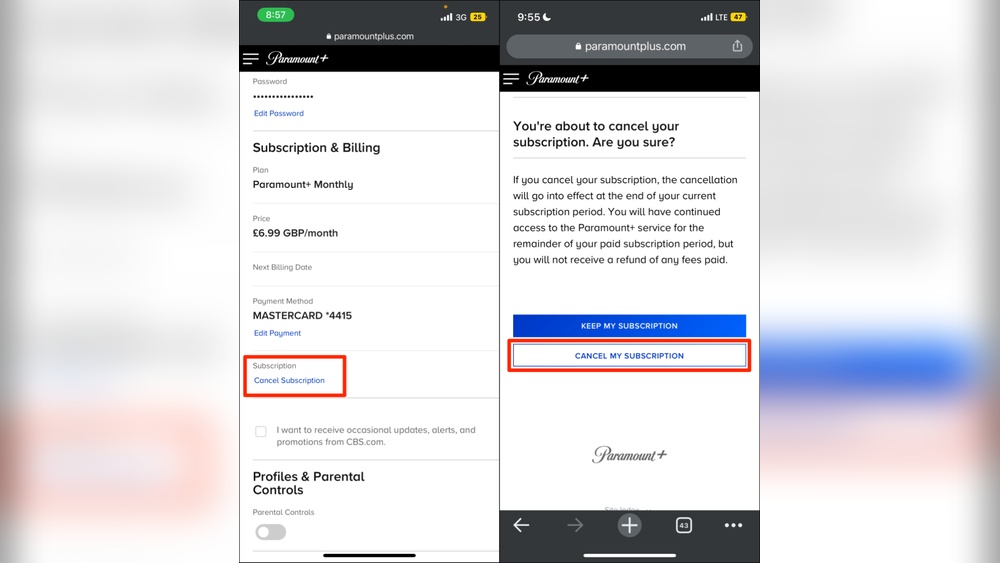
After signing in, click your profile icon on the top-right corner. Choose Account from the dropdown menu. Scroll down to find Subscription & Billing. This section shows your current plan and payment info.
Confirm Cancellation Steps
Click Cancel Subscription in the Subscription & Billing area. Follow the on-screen prompts to proceed. You may need to select a reason for cancelling. Confirm your choice to finalize the cancellation.
Once cancelled, your subscription stays active until the billing cycle ends. Check your email for a confirmation message. Keep this for your records and future reference.
Credit: www.online-tech-tips.com
Cancel On Apple Devices
Cancelling your Paramount Plus subscription on Apple devices is simple and quick. Apple handles all subscriptions through its own system. You do not need to visit the Paramount Plus app or website. Just use your device’s settings to manage and cancel the subscription. Follow the steps below to stop your Paramount Plus membership on an iPhone or iPad.
Navigate To Subscriptions In Settings
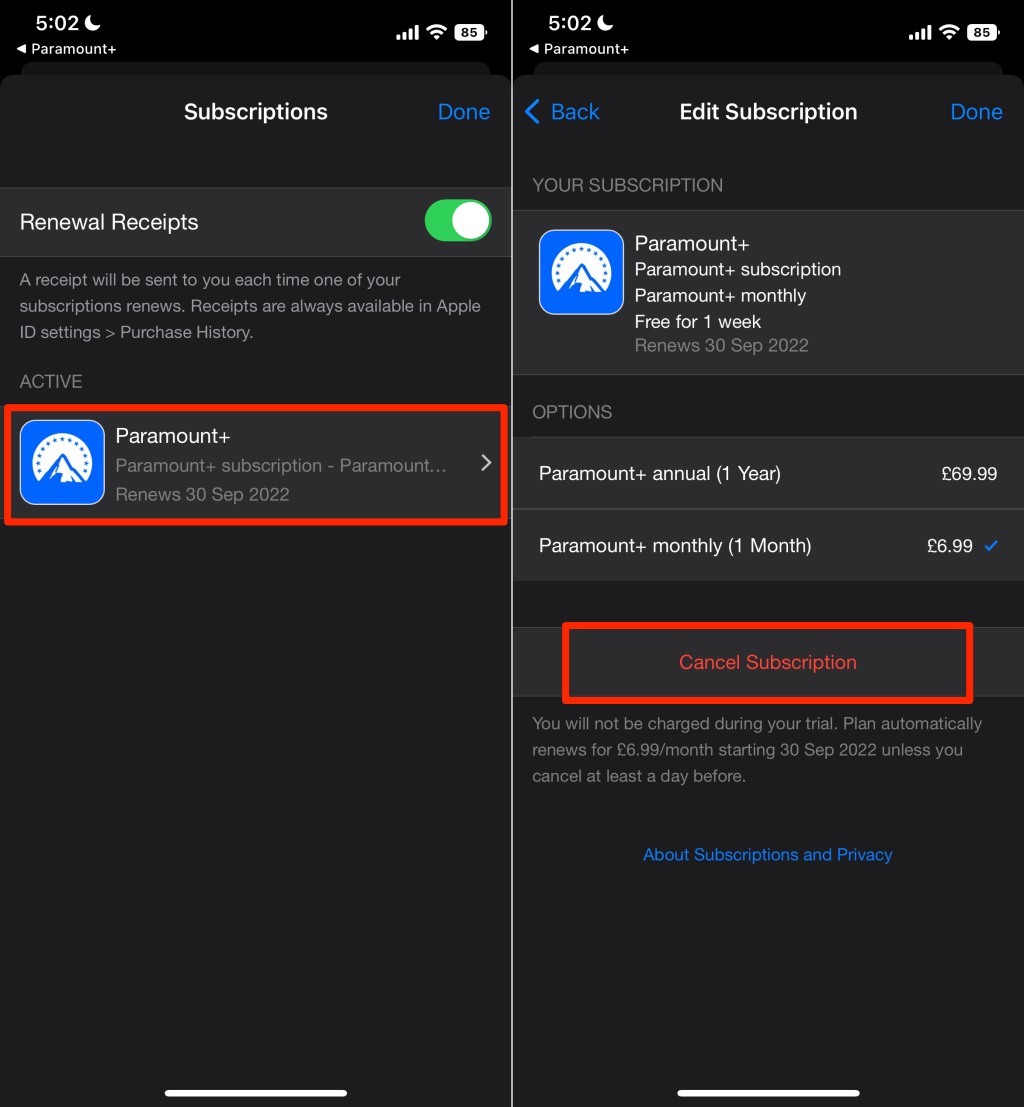
Open the Settings app on your Apple device. Tap your name at the top to access Apple ID settings. Find and select the “Subscriptions” option. This section lists all active and expired subscriptions linked to your Apple ID. Locate Paramount+ from this list to proceed with cancellation.
Select Paramount+
Tap on the Paramount+ subscription entry. You will see details like the renewal date and subscription type. Look for the option to cancel or manage your subscription. Selecting this will bring you closer to stopping the payments and ending your membership.
Complete Cancellation
Choose “Cancel Subscription” or a similar option. Apple will ask you to confirm your choice. Follow the prompts carefully to finish the cancellation process. After confirmation, your Paramount Plus subscription will end at the close of the current billing period. You can still enjoy Paramount Plus until then.
Cancel On Android Via Google Play
Cancelling your Paramount Plus subscription on an Android device is simple when done through Google Play. This method applies if you subscribed using your Google account. Follow a few clear steps to stop your subscription and avoid future charges.
Open Google Play Subscriptions
Start by opening the Google Play Store app on your Android phone or tablet. Tap your profile icon in the top right corner. From the menu, select “Payments & subscriptions,” then tap “Subscriptions.” Here you will see all active subscriptions linked to your Google account.
Find Paramount+
Scroll through your subscriptions list until you find “Paramount+.” Tap on it to open your subscription details. This section shows your billing cycle and renewal date. It also provides options to manage or cancel your subscription.
Cancel Subscription
Tap the “Cancel subscription” button. Google Play will ask you to confirm your choice. Follow the on-screen prompts to complete the cancellation. After confirmation, your Paramount Plus subscription will not renew, but you can still watch until your current billing period ends.
Cancel On Roku
Cancelling your Paramount Plus subscription on Roku is simple. Roku manages subscriptions separately from the Paramount Plus app. You must use the Roku device to stop future payments. This guide walks you through the steps.
Highlight Paramount+ Channel
Turn on your Roku device and go to the Home screen. Use the remote to find the Paramount+ channel. Do not open it. Instead, highlight the channel by moving the cursor over it.
Open Manage Subscription
Press the star () button on your Roku remote. A menu appears on the left side of the screen. Select “Manage subscription” from this menu. This option shows your subscription details.
Select Cancel
In the subscription menu, choose “Cancel subscription.” Roku will ask you to confirm the cancellation. Follow the prompts to complete the process. You will still have access until the current billing period ends.
Cancel On Amazon Prime
Cancelling your Paramount Plus subscription through Amazon Prime is simple and quick. Amazon manages your subscription payments, so you must cancel it directly on their platform. This process stops future charges but lets you enjoy Paramount Plus until the billing period ends.
Go To Memberships & Subscriptions
Start by signing in to your Amazon account on a web browser. Next, navigate to the Memberships & Subscriptions page. This section lists all your active subscriptions managed through Amazon.
Locate Paramount+
Scroll through your subscriptions until you find Paramount+. It should show the current status and next billing date. Click on Paramount+ to open the subscription details.
Turn Off Auto-renewal Or Cancel
On the Paramount+ subscription page, look for the option to Turn Off Auto-Renewal or Cancel Subscription. Select this option and follow the prompts to confirm your cancellation. Amazon will stop the automatic payments after the current period.
Credit: www.businessinsider.com
What Happens After Cancellation
Canceling your Paramount Plus subscription is a simple step. But what happens after you cancel? Understanding this helps you know what to expect next. Let’s explore the key details.
Billing Period Access
After cancellation, you keep access until the billing period ends. You can watch shows and movies as usual. Streaming stops only when your paid time runs out. No early cutoff happens after canceling.
Confirmation Email
Paramount Plus sends a confirmation email after you cancel. This email confirms your subscription ended. Check your inbox and spam folder to find it. Keep this email for your records and future reference.
Handling Offers During Cancellation
During cancellation, Paramount Plus may offer deals to keep you. These offers might include discounts or free trials. You can accept or decline them before finalizing cancellation. Choose what suits you best without pressure.
Troubleshooting Cancellation Issues
Cancelling a Paramount Plus subscription is usually straightforward. Sometimes, issues occur that make cancellation tricky. Troubleshooting helps resolve these problems quickly. This section guides you through common issues and steps to fix them.
Common Problems
Users often face problems like the cancellation button not appearing. Another issue is being unable to log in due to password errors. Sometimes, cancellation requests do not process and the subscription remains active. Also, people who subscribed via third-party apps may not find cancellation options on the Paramount Plus website.
These problems can cause confusion and unwanted charges. Knowing common issues helps you avoid mistakes and cancel smoothly.
Contacting Support
If you cannot cancel on your own, contact Paramount Plus support. Use the help section on their website or app. You can also reach out via email or phone.
When contacting support, have your account details ready. Explain the issue clearly and politely. Support staff can guide you through the cancellation process or fix errors on your account.
Checking Subscription Status
After attempting cancellation, verify your subscription status. Sign in to your Paramount Plus account and go to Account Settings. Look under Subscription or Billing to see if your plan still shows as active.
Check your email for a cancellation confirmation message. If you find no confirmation or the status shows active, the cancellation did not go through. Try cancelling again or contact support for help.
Credit: www.youtube.com
Frequently Asked Questions
How Do I Cancel My Paramount Plus Subscription?
To cancel Paramount Plus, sign in at paramountplus. com, go to Account Settings > Subscription, and select “Cancel Subscription. ” Confirm to stop future charges. For Apple, Roku, Google Play, or Amazon subscriptions, cancel directly through those platforms’ settings.
How Do I Cancel Paramount On Amazon Prime?
To cancel Paramount on Amazon Prime, go to Amazon’s “Your Memberships & Subscriptions. ” Find Paramount+, then select “Cancel Subscription” and confirm.
Does Deleting My Paramount Plus Account Cancel My Subscription?
Deleting your Paramount Plus account does not cancel your subscription. Cancel your subscription separately in Account Settings or through your app store.
How Do I Find My Paramount Plus Account?
Visit paramountplus. com and sign in. Click your profile icon, select Account, then find Subscription & Billing to view your account details.
Conclusion
Canceling Paramount Plus is simple when you follow the right steps. Remember to use a web browser or the app store where you subscribed. Always confirm the cancellation and watch for a confirmation email. Your service continues until the current billing period ends.
Taking these steps helps avoid unwanted charges and keeps your account clear. Now, you can manage your subscription with confidence and ease.