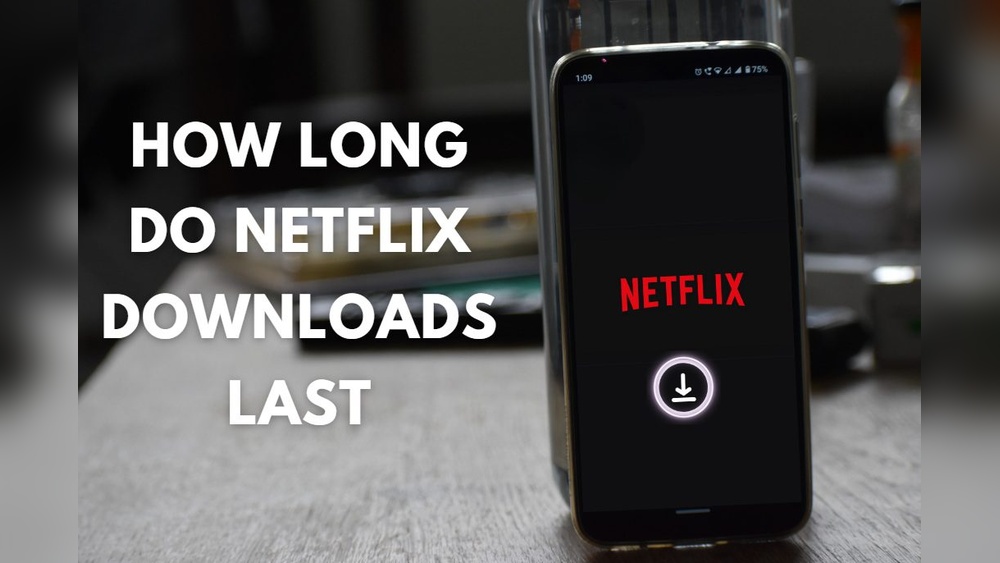
Have you ever downloaded a Netflix show or movie, only to find it suddenly disappears or won’t play when you want to watch it offline? You’re not alone.
Netflix downloads don’t last forever, and how long they stay on your device depends on several important factors. If you want to make sure your favorite titles are ready to watch whenever you need them, understanding the download expiration rules is key.
You’ll discover exactly how long Netflix downloads last on each device, why they expire, and simple tips to keep your downloads fresh and ready. Keep reading to unlock the secrets behind Netflix downloads and avoid any frustrating surprises!

Credit: www.youtube.com
Download Expiration Rules
Netflix downloads do not last forever. They come with expiration rules based on licensing and content availability. These rules vary by device and title. Understanding them helps you enjoy offline viewing without interruption. Below, we explore key download expiration rules.
License-based Duration
Each Netflix title has a specific license duration. This license decides how long you can keep a download. Some shows or movies may last 7 days. Others might expire in 30 days or less. Once you start watching, the countdown often shortens. After expiration, the download becomes unwatchable. You must renew or re-download if the license allows. This rule applies to all devices, including phones, tablets, and laptops.
Effect Of Content Removal
When Netflix removes a title from its library, all downloads of that title expire immediately. You lose access even if the download was active before removal. This happens because Netflix no longer holds the rights to stream or download that content. It is a strict rule across all devices. To avoid disappointment, watch downloaded titles before Netflix takes them down.

Credit: gisuser.com
Checking And Renewing Downloads
Managing your Netflix downloads ensures you enjoy offline viewing without interruptions. Downloads can expire based on licensing rules or device settings. Checking the status of your downloads helps avoid surprises while offline. Renewing downloads is possible for many titles, keeping your favorite shows and movies accessible. Netflix also offers features that simplify watching series by auto-downloading episodes.
How To Check Expiration
Open the Netflix app and go to “My Downloads.” Each downloaded title shows an expiration date. Some titles display a yellow exclamation mark if they are close to expiring. Tap the title to see more details about the expiration. This helps you plan your viewing before the download becomes unusable.
Renewing Expired Titles
Expired downloads often show a yellow exclamation mark or “Expired” label. Tap this icon or message to attempt renewal. Renewal depends on the license Netflix holds for that title. If available, the download refreshes without needing a new internet connection. Some titles cannot be renewed and must be downloaded again if still in the Netflix library.
Auto-downloading Next Episodes
For TV series, Netflix can auto-download the next episode after you finish watching one. This feature saves time and data by preparing the next episode offline. It also deletes the watched episode automatically to free space. Enable this setting in your app to keep your series ready to watch without manual downloads.
Device And Network Factors
Device and network factors greatly influence how long Netflix downloads stay accessible on your device. These elements can affect the expiration timing and your ability to watch content offline. Understanding their impact helps manage your downloads better and avoid unexpected expirations.
Each device interacts differently with downloaded files. Network settings and connectivity also play a role in maintaining or losing access to your content. Let’s explore some key points about these influences.
Impact Of Device Removal And Logout
Removing a device from your Netflix account can cause downloaded titles to expire earlier. Logging out of Netflix often deletes all downloads from that device. Downloads rely on your device being linked to your active Netflix account. Without this link, the app cannot verify licenses needed to play the content.
Switching devices frequently or logging out and back in may reduce download availability. Keep your device signed in to avoid losing access. Also, deleting the Netflix app removes all downloads stored on that device.
Wi-fi Connectivity Effects
Netflix checks your downloads’ status using internet connection. A stable Wi-Fi connection helps the app verify licenses and update expiration dates. Without Wi-Fi, you may see an expiration warning or be unable to renew downloads.
Offline viewing works, but the app needs periodic online access. Connecting to Wi-Fi at least once every 30 days helps keep downloads active. Poor or inconsistent Wi-Fi can cause downloads to expire unexpectedly or stop working.
Download Limits By Plan
Netflix allows downloads for offline viewing, but limits vary by subscription plan. These limits control how many devices you can use and how many titles you can download. Understanding these limits helps you manage your downloads better. Each plan offers different benefits suited to various user needs.
Device Count Restrictions
Netflix limits the number of devices you can download content on. The Basic plan allows downloads on one device only. The Standard plan lets you download on two devices. The Premium plan supports downloads on up to four devices. This means you must choose your devices carefully based on your plan.
Downloading on more devices than your plan allows will not be possible. You can remove downloads from old devices to free up space. Managing devices through your account helps keep track of active downloads. This system ensures fair usage and prevents misuse.
Title-specific Download Caps
Netflix also limits how many copies of a single title you can download. Typically, you can download a title on up to five devices. This cap prevents excessive offline sharing of the same content. Some titles have stricter limits due to licensing agreements.
When a title reaches its download cap, you must delete a copy before downloading again. This rule helps Netflix comply with content licenses. It also encourages users to rotate their downloads and keep storage free. Knowing these limits avoids download errors and frustration.
Managing Download Devices
Managing download devices is important for a smooth Netflix experience. Each Netflix account has a limit on the number of devices that can store downloads. Keeping track of these devices helps you free up space and avoid download errors. You can control which devices have access to your downloads through your account settings. This way, you can continue enjoying your favorite shows and movies without interruptions.
Removing Old Devices
Netflix allows only a certain number of devices to store downloads. When you reach this limit, you must remove old devices to add new ones. Removing a device deletes all its downloads and frees up space on your account. This step is useful if you no longer use a device or want to switch to a new one. You can remove devices easily through your Netflix account online.
Using Account Settings To Manage Downloads
Netflix’s account settings provide tools to manage your download devices. Here, you can see all devices linked to your account. You can remove unwanted devices with just a few clicks. Managing devices this way helps you control which gadgets hold your downloaded content. Staying organized prevents download issues and keeps your account secure.
Tips To Avoid Expiration
Netflix downloads come with expiration dates. This can interrupt your offline viewing plans. Knowing how to avoid expiration helps you watch without hassle. Follow these simple tips to keep your downloads valid longer.
Renewing Before Expiry
Check your downloaded titles regularly for expiration warnings. Netflix shows a yellow exclamation mark near expiring downloads. Tap this icon to renew the download if possible. Renewal depends on the content license, so it may not always work. Renewing early ensures you keep watching without interruptions.
Downloading Titles In Advance
Plan ahead by downloading shows and movies before your trip or offline time. Downloading early means you have multiple options if one expires. For series, Netflix often auto-downloads the next episode after you finish one. This keeps your watchlist fresh and ready without manual effort.

Credit: techcrunch.com
Frequently Asked Questions
How Long Will Netflix Downloads Stay On My Device?
Netflix downloads usually expire within 7 to 30 days, depending on the title’s license. Some expire 48 hours after playback. Removing downloads or the title leaving Netflix also causes expiration. Check expiration dates in the app and renew downloads if allowed by the license.
Is There A Limit On Netflix Downloads Per Device?
Netflix limits downloads based on your subscription plan, allowing 1 to 6 devices. Manage devices via your account settings.
Do Netflix Downloads Work On Multiple Devices?
Netflix downloads work on multiple devices but have device limits based on your plan. Manage devices to download more content.
What Is The 2 Minute Rule On Netflix?
The 2-minute rule on Netflix means you have about two minutes to resume a paused show or movie before the app resets playback. This helps avoid streaming errors and ensures smooth viewing.
Conclusion
Netflix downloads last for different times on each device. The length depends on the title’s license and content availability. Some downloads expire within a few days, while others may last longer. If a show or movie leaves Netflix, its downloads expire immediately.
You can check expiration dates in your app and renew downloads if possible. Remember, device settings and logging out might remove downloads sooner. Managing your downloads and devices helps keep your offline library ready. Staying aware of these rules ensures smooth offline viewing anytime, anywhere.