
Are you wondering if someone else is secretly using your WiFi? It can be frustrating to deal with slow internet or worry about your network security.
But before rushing to download apps or call your provider, there’s a simple way you can check who’s connected—right from your own computer. You don’t need any special software or technical skills. You’ll learn easy, step-by-step methods to find out who’s using your WiFi without installing any apps.
By the end, you’ll know exactly how to spot unknown devices and keep your network safe. Ready to take control of your WiFi? Let’s get started!
:max_bytes(150000):strip_icc()/how-to-tell-if-someone-is-using-your-wi-fi-50724912-bb003bce3f5744279cd429f74484b364.jpg)
Credit: www.lifewire.com
Find Router Ip Address
Finding your router’s IP address is the first step to see who is using your WiFi. This address lets you access the router’s settings page. From there, you can view all connected devices. You do not need any extra app for this. Just use your computer’s built-in tools to find the IP address.
Use Command Prompt On Windows
Press the Windows key and type “cmd”. Open Command Prompt.
Type ipconfig and press Enter.
Look for the line labeled “Default Gateway”. The number next to it is your router’s IP address.
It usually looks like 192.168.1.1 or 192.168.0.1.
Use Terminal On Mac/linux
Open Terminal from your Applications or search for it.
Type ifconfig and press Enter on Mac, or ip route show on Linux.
Find the section labeled “default” or “gateway”. The IP address next to it is your router’s address.
Common IPs are 192.168.1.1 or 10.0.0.1.
Access Router Admin Page
Checking who is using your WiFi starts with accessing the router’s admin page. This page shows all devices connected to your network. You do not need any app to view this information. The process involves using a web browser and your router’s IP address. Then, log in with your router’s credentials. This method works on almost all routers and is simple to follow.
Enter Ip Address In Browser
First, find your router’s IP address. It is usually something like 192.168.1.1 or 192.168.0.1. Open a web browser on your computer or phone. Type the IP address into the address bar. Press Enter to load the router’s login page. If the page does not load, check your device’s network settings to find the correct IP address.
Login With Credentials
After the login page appears, enter your username and password. These details are often on a sticker on the router or in its manual. Common usernames are “admin” or “user.” Passwords may be “admin,” “password,” or unique ones you set. If you changed the password before, use the updated one. Logging in grants access to your router’s settings and device list.
Locate Connected Devices
Finding out who is using your WiFi starts with locating all connected devices. You can do this without any extra apps. Your router’s settings hold the key.
Accessing the device list helps you see each gadget linked to your network. This step is simple and quick. It shows device names, IP addresses, and sometimes MAC addresses.
Check Dhcp Clients Or Attached Devices
Log in to your router’s admin page using its IP address. Look for sections named “DHCP Clients” or “Attached Devices.” These lists show all devices assigned an IP by your router.
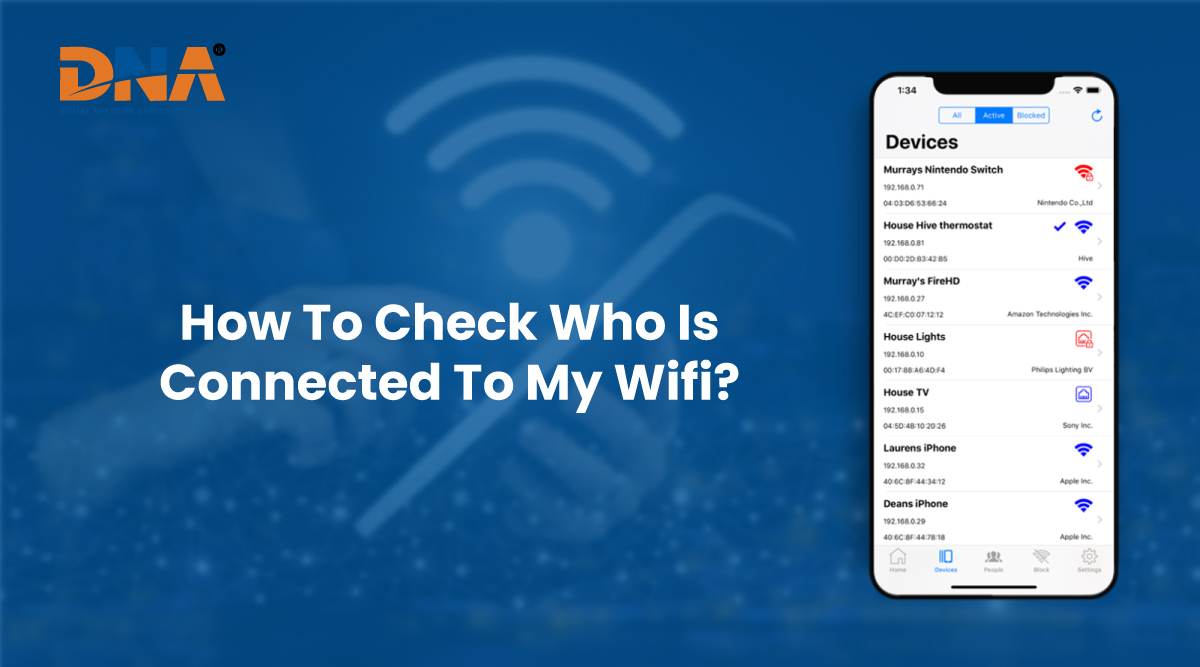
The list usually includes device names and IP addresses. Unknown devices could mean someone else is using your WiFi. Note down suspicious entries for further action.
Review Wireless Status
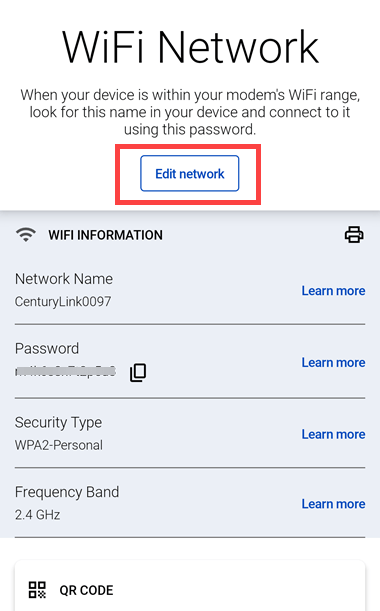
Another place to check is the “Wireless Status” page on your router. This section often displays all devices connected via WiFi. It may show signal strength and connection times.
Reviewing wireless status helps spot devices connected without your permission. You can compare this list with your known gadgets. Any device you don’t recognize may be an intruder.
Credit: www.centurylink.com
Identify Unknown Devices
Finding unknown devices on your Wi-Fi helps protect your network. You can check connected devices without using any app. First, access your router’s device list. This list shows all devices currently connected. It includes device names and MAC addresses. These details help you spot strangers on your network.
Carefully examine this information. Unknown devices might be using your Wi-Fi without permission. Identifying them is the first step to securing your internet connection. Below are simple ways to recognize these devices.
Match Device Names And Mac Addresses
Each device has a unique MAC address. This address helps identify it on the network. Compare the device names on your router’s list to your known gadgets. Phones, laptops, and tablets usually show familiar names. If a device name looks strange or unknown, note its MAC address.
Check your own devices for their MAC addresses. You can find this in device settings or system info. Match these with the list from your router. Devices with no match are likely unknown. Keep a record of these addresses for later steps.
Use Online Mac Lookup Tools
Online MAC lookup tools reveal the device manufacturer. Enter the MAC address in a lookup site. The site shows which company made the device. This information helps recognize if the device belongs to a trusted brand or not.
Knowing the manufacturer narrows down the device type. For example, Apple, Samsung, or HP are common brands. If the manufacturer is unfamiliar, it could be a stranger’s device. Use this data to decide if you should block the device from your Wi-Fi.
Use Command-line Tools
Command-line tools offer a simple way to find devices connected to your WiFi. They work without installing any apps. Just a few commands can reveal all active devices on your network. These tools are built into most operating systems, making them easy to use for everyone.
Run Arp -a To List Devices
Open your Command Prompt on Windows or Terminal on Mac/Linux. Type arp -a and press Enter. This command shows a list of IP addresses and their physical MAC addresses. Each entry represents a device connected to your network. Review the list to spot any unknown devices. This method quickly reveals all devices your router has communicated with recently.
Use Nslookup For Hostnames
Hostnames help identify devices more clearly than IP addresses alone. Use nslookup followed by the IP address from the arp -a list. This command translates the IP into a device name if available. Knowing the hostname makes it easier to recognize each device. Repeat this for each IP to get a clear view of who is on your WiFi.
Credit: dnagoa.com
Secure Your Wi-fi Network
Keeping your Wi-Fi network secure is vital to protect your personal information and maintain fast internet speeds. Unauthorized users can slow down your connection and access your data. Taking simple steps can stop unwanted guests from using your Wi-Fi. Two key actions help secure your network effectively.
Change Wi-fi Password
Changing your Wi-Fi password regularly blocks unauthorized access. Choose a strong password with letters, numbers, and symbols. Avoid common words or easy-to-guess phrases. Access your router’s settings by typing its IP address in your browser. Find the wireless security section and enter the new password. Save the changes and reconnect your devices using the updated password. This simple step keeps your network private and safe.
Enable Network Encryption
Network encryption protects data sent over your Wi-Fi. Most routers offer encryption types like WPA2 or WPA3. WPA3 is the most secure and recommended option. To enable encryption, log in to your router’s admin panel. Locate the wireless security settings and select WPA2 or WPA3. Avoid older options like WEP, as they are less secure. Enabling encryption helps prevent outsiders from intercepting your internet traffic and keeps your network secure.
Frequently Asked Questions
How Can I See All Devices Connected To My Wifi?
Access your router’s admin page by entering its IP address in a browser. Log in and check the “Connected Devices” or “Attached Devices” section. Alternatively, use network scanning apps like Fing to see all devices linked to your WiFi.
How Do I Check Who Has Been Using My Wifi?
Access your router’s admin page by entering its IP address in a browser. Log in, then check the “Connected Devices” list to see all users. Use network scanning apps like Fing for easier monitoring. Identify unknown devices and change your WiFi password to secure your network.
How Can I Identify Unknown Devices On My Wifi?
Scan your network using apps like Fing or log into your router’s admin page. Check connected devices and identify unfamiliar ones by name or MAC address. Change your Wi-Fi password to secure your network from unknown users.
Can A Wifi Owner See Who Is Using Their Wifi?
WiFi owners can see connected devices by logging into their router’s admin page or using network scanning apps. This reveals device names and IP addresses.
Conclusion
Checking who uses your WiFi without an app is simple and effective. Access your router’s admin page to view connected devices quickly. Spot unknown devices and act fast to protect your network. Change your password regularly to keep intruders out.
Staying aware helps maintain your internet speed and security. Keep your WiFi safe with these easy steps.










