

Have you suddenly noticed your laptop fan roaring louder than usual? It can be pretty unsettling when your trusty device starts sounding like a jet engine out of nowhere.
But before you panic, it’s important to understand why this happens and what it means for your laptop’s health. Your fan’s noise is actually your laptop’s way of telling you something—maybe it’s working overtime to cool down an overheating processor, or maybe dust is clogging up the vents.
You’ll discover the common reasons behind that sudden loud fan noise and, more importantly, simple steps you can take to fix it. Keep reading, because ignoring this warning could lead to bigger problems you definitely want to avoid.

Credit: www.youtube.com
Common Reasons For Loud Laptop Fans
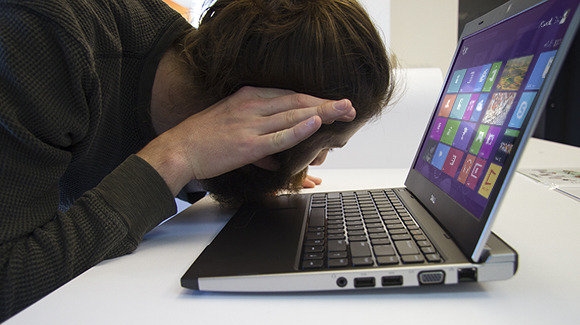
Loud laptop fans can be annoying and worrying. Understanding why your laptop fan suddenly gets loud helps you fix the issue fast. Many reasons cause loud fan noise. Some are simple, others need attention.
Heavy Cpu Usage
Running many programs or heavy apps makes your CPU work hard. This creates more heat. The fan spins faster to cool down the laptop. Tasks like video editing, gaming, or many browser tabs increase CPU load. High CPU usage often causes loud fan noise.
Dust And Blocked Vents
Dust builds up inside laptops over time. It blocks air vents and fan blades. This stops air from flowing well. The fan must work harder to cool the laptop. Dust also makes the fan noisy. Cleaning vents with compressed air can help a lot.
Overheating Issues
Laptops get hot when airflow is poor or CPU is busy. Overheating makes the fan run loudly to lower the temperature. Using the laptop on soft surfaces can block vents. Overheating also happens if thermal paste dries out. Overheating needs quick action to avoid damage.
Faulty Fan Hardware
Fans can wear out or get damaged over time. A broken fan might make strange or loud noises. Bearings can fail, or blades can get stuck. Faulty fans do not cool well and cause loud noise. Replacing a bad fan fixes this problem.
Credit: www.techsolutions.support.com
How Heavy Tasks Affect Fan Noise
Loud laptop fan noise often links directly to heavy tasks running on your machine. These tasks demand more processing power, which creates extra heat. The fan must spin faster to keep the laptop cool. Understanding which tasks cause this can help you manage fan noise better.
Gaming And Video Editing
Games and video editing software use a lot of your laptop’s CPU and GPU. This high workload generates heat quickly. The fan speeds up to cool these components. Expect louder fan noise during long gaming sessions or video rendering.
Multiple Open Tabs And Applications
Having many browser tabs and apps open uses more memory and processing power. This makes your laptop work harder, raising its temperature. The fan reacts by running faster to prevent overheating. Closing unused tabs and apps can reduce fan noise.
Initial Startup Fan Behavior
When you turn on your laptop, the fan may run loudly for a few seconds. This is normal. The system performs checks and starts cooling as the CPU reaches its working temperature. The noise usually settles down quickly after startup.
Dust Accumulation And Ventilation Problems
Dust buildup inside your laptop can cause the fan to become very loud suddenly. Dust blocks airflow and traps heat. This forces the fan to work harder to cool the laptop. Poor ventilation worsens this problem by limiting air movement. Both issues reduce cooling efficiency and increase noise. Regular cleaning helps keep your laptop running quietly and cool.
Impact Of Dust On Airflow
Dust collects on fan blades and inside vents. It clogs air pathways and slows down airflow. When air cannot flow freely, heat builds up inside the laptop. The fan spins faster to push air through the dust. This makes the fan louder and wears it out faster. Dust also causes the laptop to overheat, reducing its performance and lifespan.
Cleaning Vents And Fans
Cleaning vents and fans removes dust and restores airflow. Turn off and unplug your laptop first. Use a soft brush or cloth to clear dust from vents. Open the laptop case only if you are comfortable doing so. Carefully clean the fan blades and surrounding areas. This helps the fan run smoothly and quietly again.
Using Compressed Air And Brushes
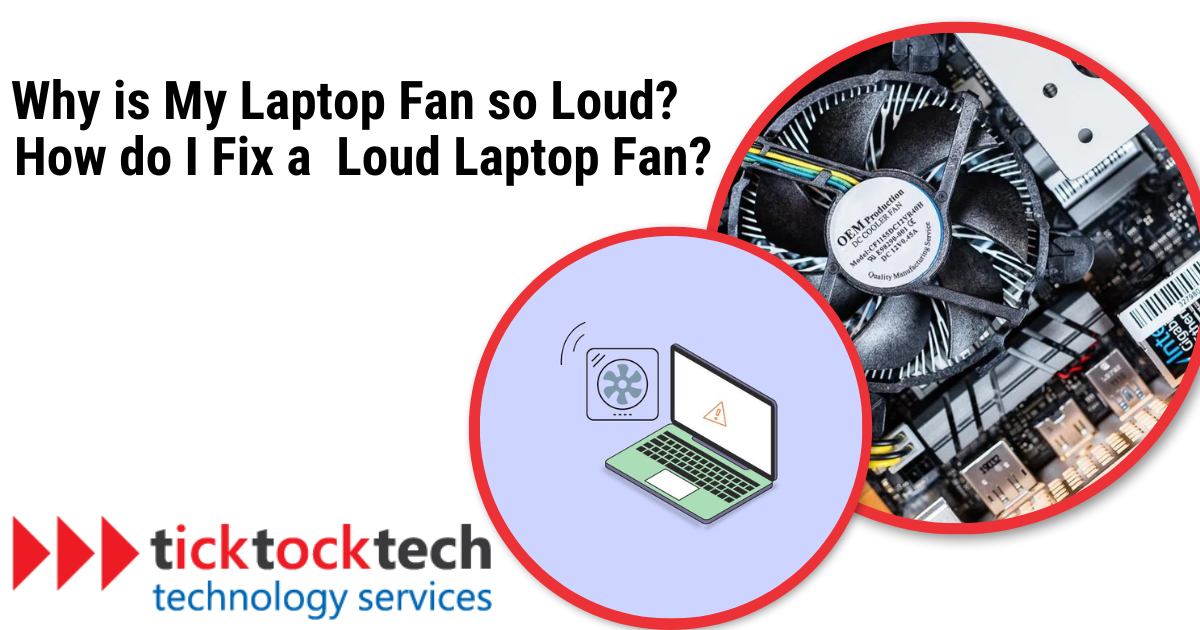
Compressed air can blow dust out of hard-to-reach places. Hold the can upright and spray short bursts into vents. Avoid spinning the fan too fast with the air. Use a small brush to loosen stubborn dust on fan blades. Repeat until dust is removed. This method is safe and effective for regular laptop maintenance.
Credit: ticktocktech.com
Managing Overheating And High Temperatures
Managing overheating and high temperatures is key to keeping your laptop fan quiet and your device running smoothly. Overheating forces the fan to work harder to cool down the internal parts. This increases noise and can reduce your laptop’s performance. Taking simple steps helps control temperature and lowers fan noise.
Closing Resource-intensive Programs
Programs using a lot of power make your laptop heat up quickly. Closing these applications eases the load on the CPU and GPU. Check your task manager to find heavy programs. Shut down apps you do not need. This reduces heat and lets the fan run slower.
Using Laptop Cooling Pads
Cooling pads add extra airflow around your laptop. They help lower the temperature by improving heat dissipation. Place your laptop on a cooling pad with fans to keep it cooler. This reduces the work your laptop fan must do. Cooling pads are easy to use and effective.
Ensuring Proper Airflow And Placement
Good airflow keeps your laptop cool and the fan quiet. Avoid placing your laptop on soft surfaces like beds or couches. These block air vents and trap heat. Use a flat, hard surface like a desk or table. Keep vents clean and free from dust. Proper placement helps air flow freely and cool your laptop better.
Identifying And Fixing Hardware Issues
Hardware problems often cause sudden loud laptop fan noise. Identifying these issues early helps protect your device. You can fix some hardware problems yourself. Others need expert attention to avoid damage.
Recognizing Grinding Or Rattling Noises
Listen carefully to your laptop fan. Grinding sounds may mean the fan bearings are worn out. Rattling noises could signal loose screws or broken fan blades. These noises are not normal and need quick action. Ignoring them might cause more damage or overheating.
When To Seek Professional Repair
Some hardware problems require a technician. If the fan noise stays loud after cleaning, the fan might be faulty. Strange noises with other symptoms like shutdowns or overheating need expert help. Professionals can diagnose and fix complex issues safely. Trying to fix serious problems alone might void your warranty or worsen damage.
Replacing Or Repairing The Fan
Replacing a broken fan often solves loud noise problems. Some fans are easy to access and replace with a screwdriver. Make sure to get the correct fan model for your laptop. Repairing the fan may involve tightening screws or cleaning internal parts. Use compressed air to remove dust and debris from the fan blades and vents. Regular maintenance keeps the fan running quietly and efficiently.
Software And Background Processes Impact
Software and background processes play a big role in your laptop fan noise. Programs running in the background can use a lot of your CPU power. This makes your laptop hotter, causing the fan to speed up. Many times, users do not realize how much work their system does silently. Monitoring and managing these processes helps keep the fan noise down. It also improves your laptop’s performance and battery life.
Checking Cpu Usage In Task Manager
Open Task Manager by pressing Ctrl + Shift + Esc. Look at the CPU column to see which apps use most resources. High CPU usage means your laptop is working hard. Check for apps you do not recognize or need running. Also, look at the total CPU percentage at the top. If it stays high, your fan will run loud to cool the system.
Ending Unnecessary Tasks
In Task Manager, select tasks that use a lot of CPU but are not important. Click “End Task” to stop them. This frees up CPU power and reduces heat. Be careful not to close system processes. Ending unnecessary tasks can quickly lower fan noise and make your laptop quieter.
Scanning For Malware
Malware can run secretly and use CPU resources heavily. This causes your fan to get loud suddenly. Run a full scan with your antivirus software to find malware. Use trusted security programs for best results. Removing malware helps your laptop cool down faster and stay quieter. Regular scans protect your system and improve fan performance.
Tips To Reduce Loud Fan Noise
Loud laptop fans can disturb your work and drain battery life. Reducing fan noise improves comfort and device longevity. Simple steps help lower the noise without extra tools or costs.
Keeping Laptop On Flat Surfaces
Place your laptop on hard, flat surfaces to allow proper airflow. Soft surfaces like beds or couches block vents and trap heat. This forces the fan to run louder to cool the system. Using a laptop stand or desk keeps air moving freely. This reduces overheating and fan noise effectively.
Regular Maintenance And Cleaning
Dust and debris build up inside the laptop over time. This clogs vents and slows fan blades. Clean your laptop regularly by blowing compressed air into vents. Use a soft brush to remove dust from fan blades carefully. Regular cleaning helps the fan run smoothly and quietly. It also prevents overheating and hardware damage.
Adjusting Power And Performance Settings
Lowering your laptop’s performance can reduce heat and fan speed. Use power-saving modes or adjust CPU settings in your system preferences. Close unused programs and browser tabs to reduce CPU load. This helps the fan stay quieter during light tasks. Balancing performance and cooling keeps your laptop quiet and efficient.
Frequently Asked Questions
Can I Clean My Laptop Fan Myself?
Yes, you can clean your laptop fan yourself. Power off, open the case carefully, and use compressed air or a soft brush to remove dust. Avoid touching sensitive components. Regular cleaning improves cooling and reduces noise.
Is It Bad If I Can Hear My Laptop Fan?
Hearing your laptop fan is normal during heavy tasks or startup. Constant loud noise signals dust, overheating, or hardware issues needing cleaning or repair.
Is It Bad For A Laptop Fan To Run Constantly?
Constant laptop fan running can indicate overheating or dust buildup. This stresses the fan, reducing its lifespan. Clean vents and manage workloads to prevent damage.
How To Fix A Laptop Fan?
Clean dust from vents and fan blades using compressed air. Close heavy apps to reduce CPU load. Ensure proper airflow. Replace the fan if it makes grinding noises.
Conclusion
A loud laptop fan often means your device works harder to stay cool. Dust, heavy tasks, or blocked vents usually cause this noise. Clean your vents regularly and keep your laptop on a flat surface. Close unnecessary programs to reduce CPU load.
Persistent loud noise or strange sounds may need professional help. Taking simple steps can keep your laptop running smoothly and quietly. Don’t ignore sudden fan noise—it protects your laptop’s health and performance.










