
Have you ever hit “Send” on an email and instantly wished you could take it back? Maybe you attached the wrong file, forgot to add an important detail, or simply made a typo that changes the whole meaning.
If you use Outlook for your emails, you might be in luck—there’s a way to recall that message before it causes any trouble. But how exactly do you recall an email in Outlook, and what should you know to make sure it works?
Keep reading, and you’ll learn simple, step-by-step tips to fix those email mistakes fast and save yourself from potential embarrassment or confusion. Don’t let one slip-up hold you back—take control of your inbox now!
Credit: www.ablebits.com
Recall Email In Outlook
Recalling an email in Outlook can save you from sending incorrect or incomplete messages. This feature allows you to remove or replace an email after it has been sent. It works best when both sender and recipient use Microsoft Exchange within the same organization. Follow these steps carefully to recall an email successfully.
Access Sent Items Folder
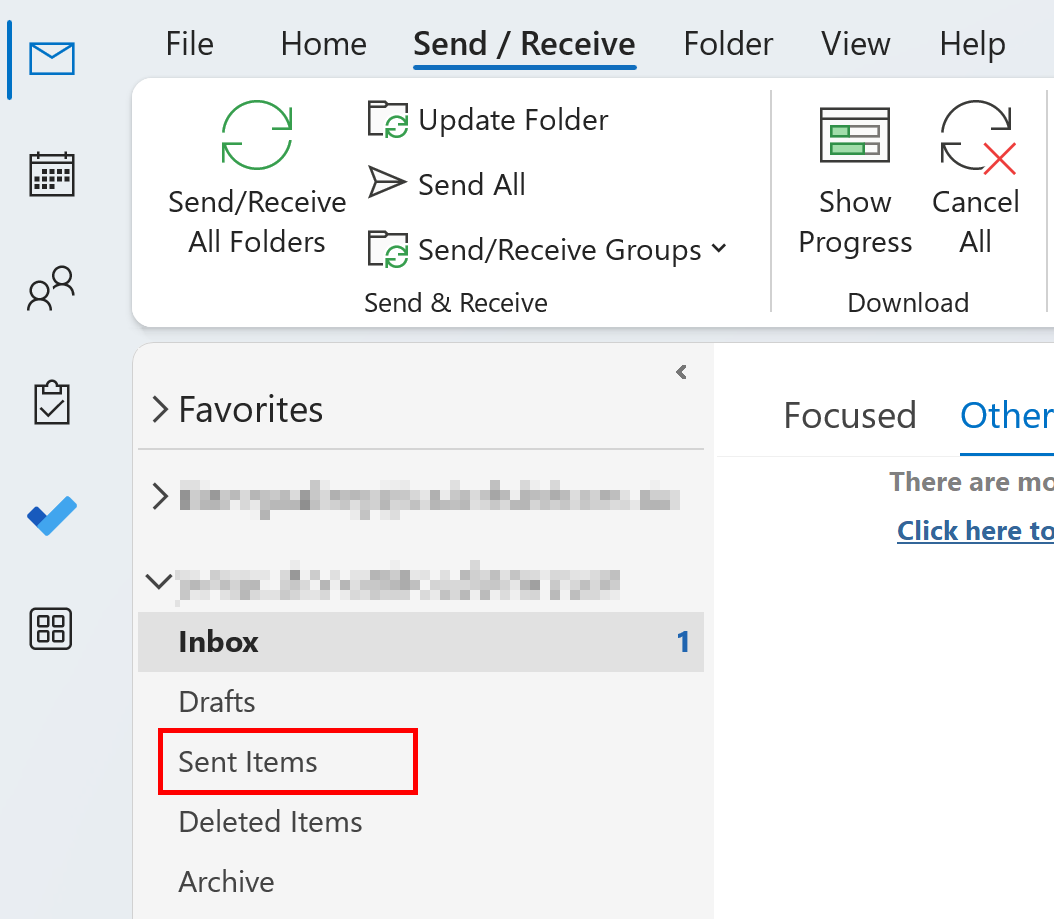
Open Outlook and find the Sent Items folder in the left sidebar. This folder stores all emails you have sent. Locate it to start the recall process.
Open The Email To Recall
Double-click the email you want to recall. It opens in a new window. Make sure you select the correct message before moving on.
Locate Recall Option
In the new message window, click on the File tab. Choose Info, then select Resend or Recall. Click on Recall This Message to proceed.
Choose Recall Type
Two options appear: Delete unread copies or Delete unread copies and replace with a new message. Pick the option that fits your need.
Enable Recall Notifications
Check the box that says Tell me if recall succeeds or fails for each recipient. This sends you notifications about the recall status.
Confirm Recall Action
Click OK to start recalling the email. Outlook will attempt to remove or replace the message from recipients’ inboxes. Keep in mind, success depends on many factors.
Credit: www.ionos.com
Recall Options Explained
Outlook offers two main recall options to manage sent emails. These choices help you control what happens after sending a message. Understanding each option ensures you use the right one for your needs. Both options work only if the recipient has not opened the email yet.
Delete Unread Copies
This option removes the email from the recipient’s inbox if unread. Outlook tries to delete all unread copies of the sent message. If successful, the recipient will not see the email at all. This option works well for simple mistakes or wrong recipients. You get a notification about the recall status if you select the option.
Delete And Replace Email
This choice deletes the original unread email and sends a corrected version. Use this to fix errors or add missing information. Outlook removes the first message and delivers the new one to the inbox. The recipient sees only the updated email if the recall works. Notifications about success or failure keep you informed.
Recall Process Tips
Recalling an email in Outlook can save you from many awkward situations. The recall process has some key tips to improve success. Knowing these tips helps you act fast and correctly. Follow these guidelines to increase your chances of recalling an email.
Recall Within Same Organization
The recall feature works best when both sender and recipient use the same organization’s email system. Outlook can track messages only inside the company’s network. External email services usually do not support recall. Make sure your recipient is within your organization for recall to work.
Email Not Opened By Recipient
Recall works only if the recipient has not opened the email yet. Once opened, the recall attempt fails automatically. Act quickly after sending the message to recall it. If the email is read, send a correction or apology instead.
Recall Success And Failure Reports
Outlook offers reports that show if the recall succeeded or failed. Enable notifications when starting the recall process. These reports tell you which recipients received the recall. Use this information to follow up manually if needed.
Credit: support.microsoft.com
Recall In Different Outlook Versions
Recalling an email in Outlook varies across different versions. Each version offers a unique interface and steps to follow. Knowing these differences helps you act fast and avoid confusion. Below are the recall methods for popular Outlook versions.
Classic Outlook Steps
Open Outlook and go to the Sent Items folder. Double-click the email you want to recall to open it.
Click the File tab at the top left corner. Select Info, then choose Resend or Recall.
Click Recall This Message. Pick Delete unread copies of this message to remove it or Delete unread copies and replace with a new message to edit.
Check the box to get notifications about the recall status. Click OK to complete.
Simplified Ribbon Steps
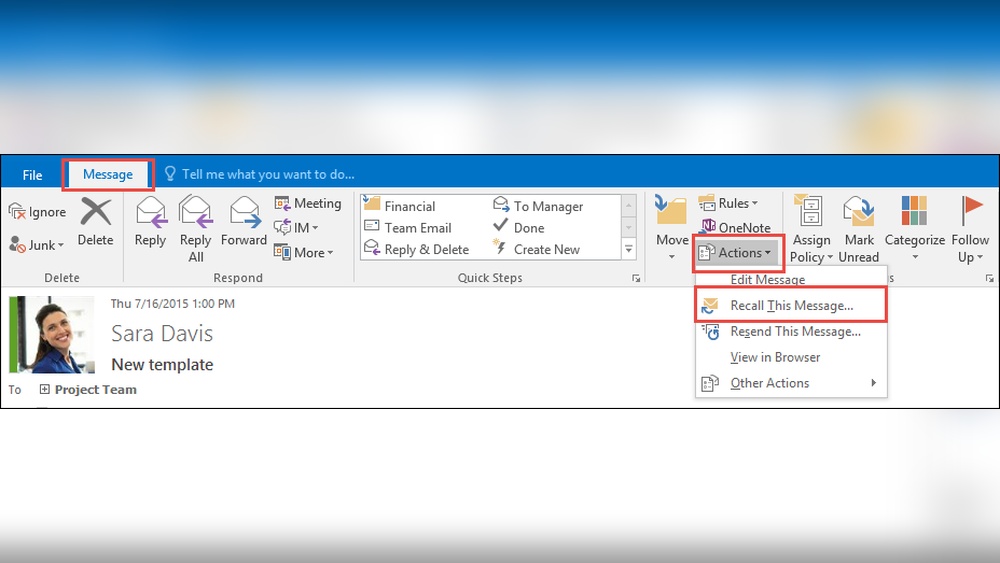
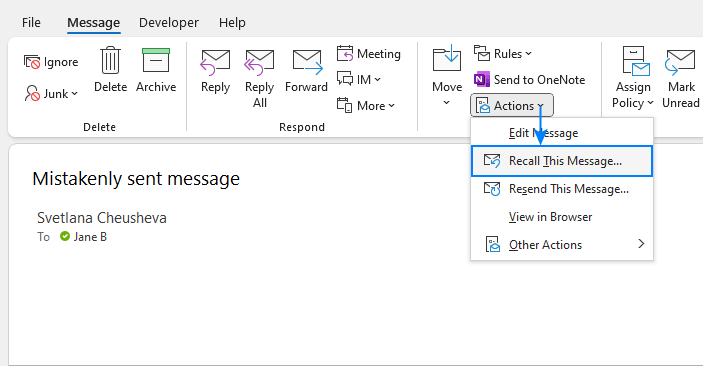
Go to Sent Items and open your email. On the message window, find the Actions button in the Move group.
Click Recall This Message from the dropdown. Choose your preferred recall option: delete or replace.
Enable notification to see if the recall worked or failed. Press OK to start the recall.
New Outlook Web Interface
Log into Outlook on the web and open the Sent Items folder. Select the email to recall.
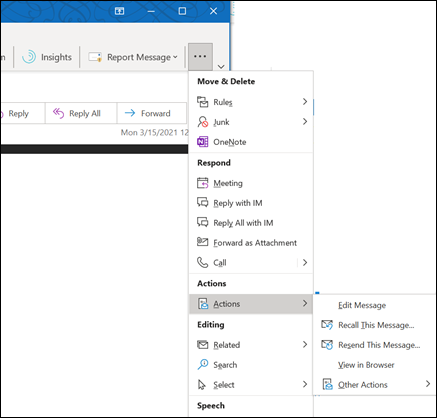
Click the three dots (…) for more actions. Find and select Recall This Message.
Choose to delete unread copies or replace the message. Confirm your choice and wait for the recall status.
Common Recall Challenges
Recalling an email in Outlook might seem simple, but many challenges can stop it from working. Understanding these common issues helps set the right expectations. Outlook’s recall feature works best under specific conditions and has limits.
Some problems depend on the recipient’s actions and email setup. Outlook can only recall messages within the same organization. External emails or those already read often cannot be pulled back. Timing also plays a big role in recall success.
Recipient Already Read Email
Recall fails if the recipient opens the email first. Once read, the message stays in their inbox. Outlook cannot erase what they already saw. The recall notice may arrive, but the original email remains. Quick action is crucial to improve success chances.
External Recipients Limitations
Outlook recall works only inside your company’s email system. Emails sent outside your organization cannot be recalled. Different email providers do not support recall requests. This makes it impossible to retract emails to outside contacts. Always double-check recipients before sending.
Notification Timing
Recall success depends on how fast the recipient’s email system processes the request. If the recall message arrives after they open the email, it will fail. Delays in email servers or internet speed affect timing. Outlook may notify you about success or failure after some time.
Alternative Solutions
Recalling an email in Outlook does not always work perfectly. Sometimes the recipient already reads the message. Other times, technical limits block the recall. There are smart alternative solutions to prevent or fix mistakes in sent emails. These tips help manage email errors and improve communication.
Delay Sending Emails
Outlook lets you delay sending emails. Set a few minutes delay to catch errors. This pause gives time to review and change the email. You can enable this in Outlook’s Rules or Settings. It acts like a safety buffer before the message leaves your outbox.
Use Outlook Add-ins
Some add-ins add useful features to Outlook. They help manage emails better and protect against mistakes. For example, add-ins can check for missing attachments or wrong recipients. Others offer more advanced recall options. Installing reliable add-ins boosts your email control.
Follow-up Email Strategies
Send a follow-up email to correct or clarify mistakes. This works well if recall fails or is unavailable. Keep the follow-up short and polite. Explain the error and provide the correct information. This shows professionalism and keeps communication clear.
Frequently Asked Questions
How Do I Recall An Email Already Sent In Outlook?
Go to Sent Items, open the email, click File or Actions, select Recall This Message. Choose to delete or replace unread copies, then confirm. Outlook sends a recall success or failure notification. Recall only works if recipients haven’t opened the email.
How To Recall An Email In Outlook Without Recipient Knowing?
Open Sent Items in Outlook and double-click the email. Select File > Resend or Recall > Recall This Message. Choose to delete unread copies or replace the email. Confirm and track recall status. Recipients won’t know if the message was unread and successfully recalled.
How Long After You Send An Email Can You Recall It On Outlook?
You can recall an email in Outlook only if recipients haven’t opened it yet. The recall must occur soon after sending, typically within minutes. Access Sent Items, open the email, select “Recall This Message,” and choose to delete or replace unread copies.
Success depends on recipient settings.
How Do I Recall An Email Without Recipients Knowing?
Open Sent Items, double-click the email, select Actions > Recall This Message. Choose to delete or replace unread copies. Recipients won’t know if they opened it. Success depends on recipient’s email settings and if the email is unread.
Conclusion
Recalling an email in Outlook can save you from mistakes. Act quickly before recipients open your message. Follow simple steps to recall or replace emails easily. Remember, success depends on recipient actions and email settings. Use recall notifications to track the outcome.
Practice this skill to handle email errors calmly. Outlook’s recall feature adds control to your communication. Stay confident when managing your sent emails.










