
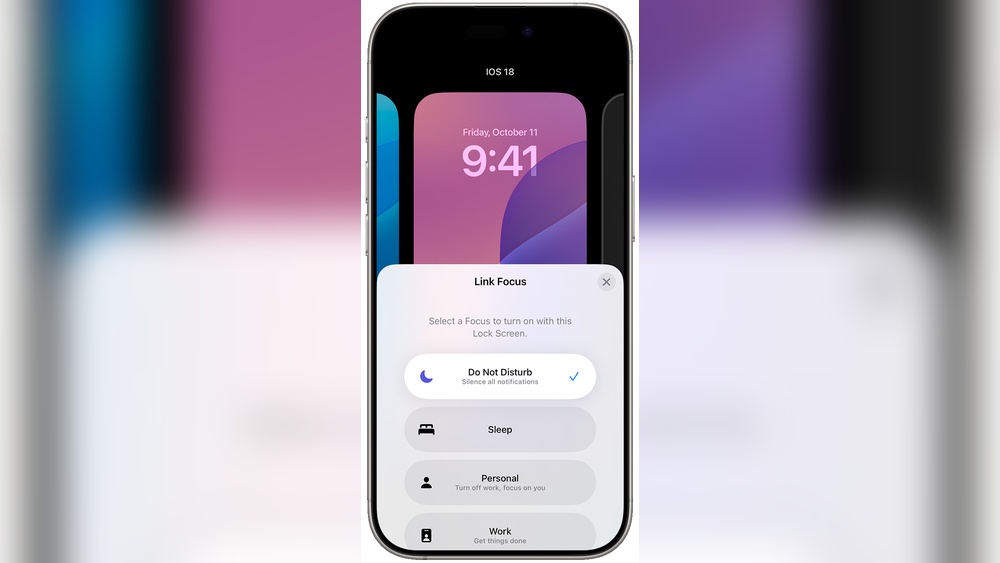
Are you struggling to turn off Do Not Disturb mode on your phone? Whether your calls and notifications keep disappearing or your device stays silent when you don’t want it to, it can be frustrating.
But don’t worry—this guide will walk you through simple, step-by-step methods to disable Do Not Disturb on both iPhone and Android. By the end, you’ll have full control over when your phone stays quiet and when it rings, so you never miss important messages again.
Keep reading to unlock easy fixes that anyone can do!

Credit: support.apple.com
Disable Do Not Disturb On Iphone
Disabling Do Not Disturb on your iPhone is simple and quick. You can turn it off in several ways depending on your preference. This allows calls, messages, and notifications to come through normally again.
Here are three easy methods to disable Do Not Disturb on your iPhone.
Use Control Center Toggle
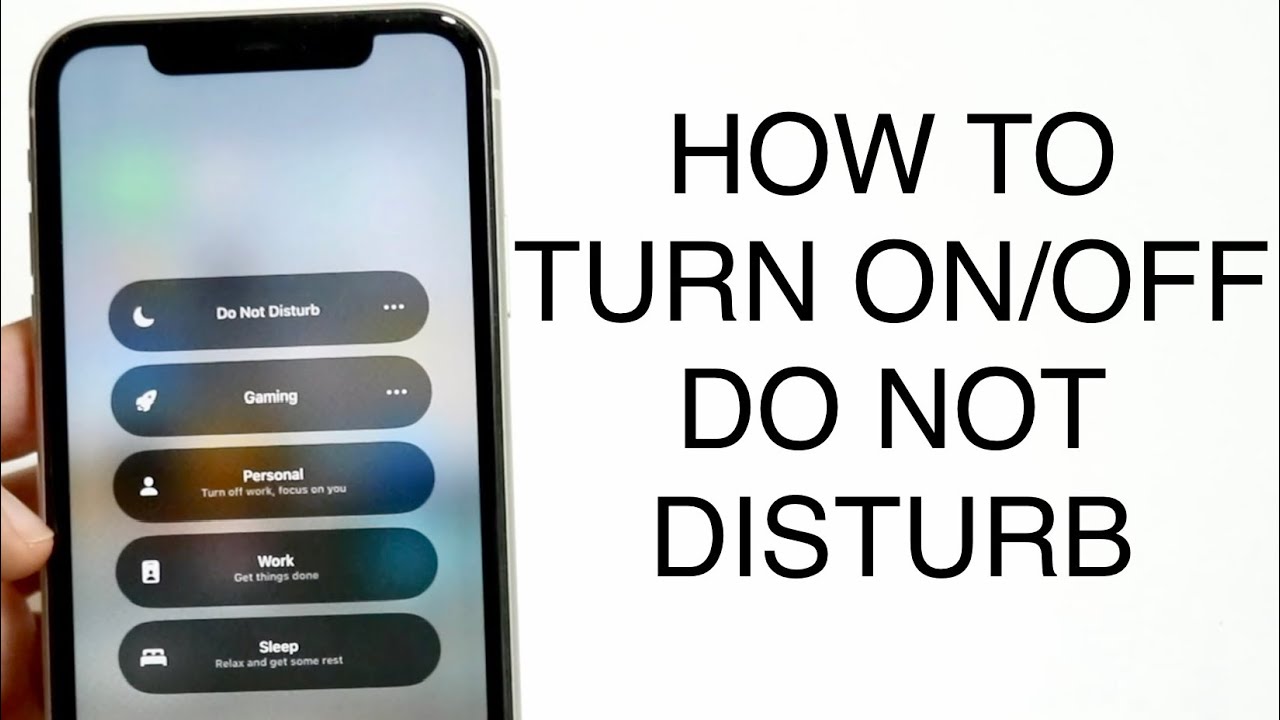
Swipe down from the top-right corner of your screen to open Control Center. Look for the Focus or moon icon. If it is highlighted, tap it once to turn off Do Not Disturb. The icon will no longer be filled, showing the mode is off.
Ask Siri To Turn Off
Activate Siri by saying “Hey Siri” or holding the side button. Then say, “Turn off Do Not Disturb.” Siri will confirm and disable the mode. This hands-free method is fast and convenient.
Restart Your Iphone
If Do Not Disturb won’t turn off, try restarting your iPhone. Press and hold the side button and volume button until the power off slider appears. Slide to power off, wait a few seconds, and turn your device back on. This often clears minor glitches.

Credit: www.youtube.com
Manage Focus Modes
Managing Focus Modes is essential for controlling your Do Not Disturb settings. Focus Modes help you stay focused by limiting notifications. You can turn off Do Not Disturb by adjusting these modes. This section guides you through checking active modes, removing schedules, and syncing settings across devices.
Check Active Focus Modes
Open your device’s Settings and tap on Focus. Look for any active Focus Modes like Do Not Disturb, Sleep, or Work. Tap the active mode to open its settings. Toggle the switch to turn off the Focus Mode. This stops notifications from being silenced.
Remove Scheduled Activations
Focus Modes can turn on automatically at set times. In Focus settings, select the mode with a schedule. Find the Scheduled option and disable it. This prevents Focus from activating by itself. You regain control over when Do Not Disturb is on.
Turn Off Share Across Devices
Focus settings can sync across your Apple devices. This means turning on Do Not Disturb on one device affects all others. To stop this, go to Settings > Focus. Scroll to find Share Across Devices. Toggle it off. Now, your devices manage Focus modes independently.
Turn Off Do Not Disturb On Android
Turning off Do Not Disturb on Android is simple and quick. This mode silences calls, alerts, and notifications. It helps you avoid interruptions during meetings or rest. Knowing how to disable it lets you receive calls and messages again.
Two main methods exist to turn off Do Not Disturb. Use the Quick Settings panel for fast access. Adjust the settings menu for detailed control.
Use Quick Settings Panel
Swipe down from the top of your screen. This opens the Quick Settings panel. Look for the Do Not Disturb icon. It usually looks like a circle with a line.
Tap the icon once. The icon will dim or disappear. This means Do Not Disturb is off. Your phone will now ring and show notifications.
This method works on most Android phones. It is the fastest way to disable Do Not Disturb.
Adjust Settings Menu Options
Open the Settings app on your phone. Scroll to find Sound & vibration or Sounds.
Tap Do Not Disturb. Here, you see all options related to this mode. Toggle off the switch at the top to disable Do Not Disturb.
You can also change schedules and exceptions here. This helps you customize when and how the mode works.
Use the settings menu if Quick Settings does not respond. It offers full control over Do Not Disturb features.
Fix Do Not Disturb Stuck On
Sometimes, the Do Not Disturb (DND) mode gets stuck and won’t turn off. This issue can interrupt calls and notifications, causing frustration. Fixing it requires a few simple steps to reset your device and software settings. The following methods work well for most smartphones.
Restart Device
Restarting your device can clear temporary bugs. Hold the power button until the shutdown option appears. Slide to turn off the device. Wait for a few seconds, then press the power button again to turn it on. After reboot, check if Do Not Disturb is off.
Update Software
Outdated software can cause Do Not Disturb issues. Go to your device settings and find the update section. Download and install any available updates. Software updates often fix bugs and improve device performance. Restart your phone after updating to apply changes.
Reset All Settings
Resetting settings can fix persistent Do Not Disturb problems. This action restores system settings without deleting your data. Go to Settings, then General, and choose Reset. Select Reset All Settings and confirm. Your device will restart, and settings will return to default. Check Do Not Disturb status after reset.
Prevent Automatic Do Not Disturb
Automatic Do Not Disturb (DND) can block calls and messages without warning. Many users find it annoying when their device switches to DND on its own. Preventing automatic DND helps keep your phone accessible. Adjust a few settings to stop this from happening.
Disable Sleep Mode
Sleep Mode often triggers Do Not Disturb automatically. Open your phone’s settings and go to the Sleep or Bedtime section. Turn off any scheduled Sleep Mode. This stops DND from turning on during your usual sleep hours. You stay reachable all day and night.
Check Third-party Apps
Some apps can control Do Not Disturb settings. Check apps that manage calls, notifications, or focus modes. Open each app and look for any DND controls. Disable any automatic DND features inside these apps. This prevents conflicts with your phone’s main settings.
Review Scheduled Focus Settings
Focus modes may have schedules that activate DND automatically. Go to Settings and tap Focus. Check each Focus mode for schedules or automation. Turn off any time-based triggers or location rules. This stops Focus modes from turning on DND without your permission.
Credit: www.youtube.com
Frequently Asked Questions
How Do I Turn My Do Not Disturb Mode Off?
Open Control Center by swiping down from the top-right. Tap the Do Not Disturb or Focus icon to turn it off. Alternatively, go to Settings > Focus and disable Do Not Disturb. Restart your device or ask Siri to “Turn off Do Not Disturb” if needed.
Do Not Disturb Won’t Turn Off Iphone.?
If Do Not Disturb won’t turn off, open Control Center and tap the Focus (moon) icon. Restart your iPhone. Check Settings > Focus for active modes or schedules and disable them. Also, turn off “Share Across Devices” in Focus settings to stop syncing from other Apple devices.
How Do I Exit From Do Not Disturb Mode?
To exit Do Not Disturb mode, open the Control Center and tap the Do Not Disturb (moon) icon. On iPhone, also check Settings > Focus and disable active modes. Restart your device if it remains on. You can ask Siri, “Turn off Do Not Disturb” for quick action.
How To Get Rid Of Half Moon On Iphone?
To remove the half moon on iPhone, open Control Center and tap the Focus (moon) icon to disable Do Not Disturb. Restart your iPhone if needed. Also, check Settings > Focus for active modes or schedules and turn them off.
Disable “Share Across Devices” to prevent syncing.
Conclusion
Turning off Do Not Disturb is simple and quick. Use the Control Center to toggle it off fast. Restarting your device can fix stubborn issues. Siri can also help by voice command. Check your Focus settings for any active modes.
Managing these steps ensures you won’t miss important calls or alerts. Stay connected and in control of your notifications easily.










