

Have you accidentally blocked someone important on your iPhone? Or maybe you’ve changed your mind and want to reconnect with a contact you once blocked?
Whatever the reason, unblocking a number on your iPhone is simpler than you might think. In this guide, you’ll discover easy, step-by-step methods to unblock any number quickly. Keep reading, and you’ll be ready to restore those calls and messages in no time.
Don’t miss out on making your iPhone work exactly how you want it!
Locate Blocked Numbers
Knowing where to find blocked numbers on your iPhone is the first step to unblocking them. The blocked list holds all the contacts and numbers you have restricted from calling or messaging you. Locating this list is simple and helps you manage your blocked contacts efficiently.
Accessing Blocked Contacts
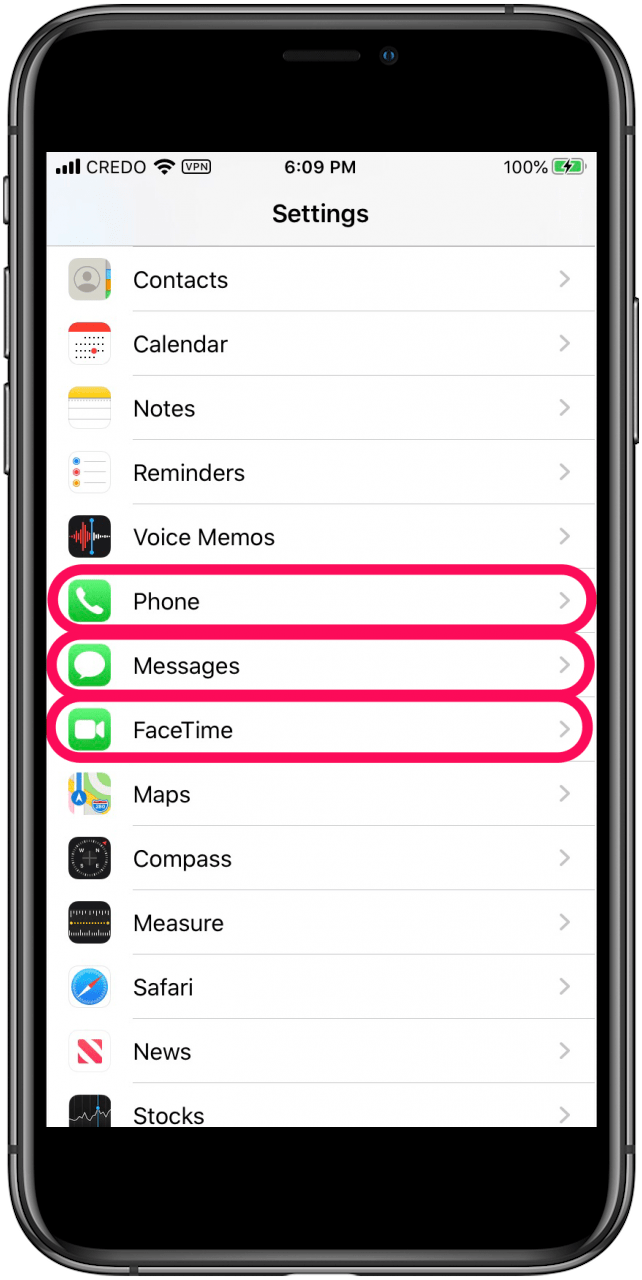
Start by opening the Settings app on your iPhone. Scroll down and select the Phone option. Inside the Phone settings, find and tap on Blocked Contacts. This section shows all numbers and contacts you have blocked. You can review and manage your blocked list here easily.
Viewing Blocked List On Newer Ios
On newer iOS versions, you can also view blocked numbers through the Messages or FaceTime settings. Open Settings, then tap Messages or FaceTime. Scroll to Blocked Contacts to see the blocked numbers. This method gives you quick access without going to the Phone settings. You can unblock numbers directly from these lists as well.

Credit: smart.dhgate.com
Unblock Number Via Settings
Unblocking a number on your iPhone through the Settings app is a simple process. This method lets you manage all blocked contacts easily in one place. It works well for removing any number from the block list quickly. Follow the steps below to unblock numbers using your phone settings.
Using Phone Settings
First, open the Settings app on your iPhone. Scroll down and tap on the “Phone” option. Inside the Phone menu, find and tap “Blocked Contacts.” This will show you a list of all numbers you have blocked. From here, you can manage your blocked numbers directly.
Removing Number From Blocked List
To remove a number, tap “Edit” at the top right of the screen. Next, tap the red minus sign next to the contact or number you want to unblock. Then, tap “Unblock” to confirm your choice. Finally, tap “Done” to save changes. The number will now be unblocked and able to call or message you again.
Unblock Contact From Contacts App
Unblocking a contact directly from the Contacts app is simple and quick. It lets you manage your blocked contacts without digging through settings. This method is handy when you want to allow calls or messages from someone in your contact list again.
Follow the steps below to find the contact card and use the unblock option easily on your iPhone.
Finding Contact Card
Open the Contacts app on your iPhone. Scroll or search to find the contact you wish to unblock. Tap the contact’s name to open their details. This screen shows phone numbers, email, and other info. Scroll down to see more options linked to this contact.
Using Unblock Caller Option
At the bottom of the contact card, look for the “Unblock Caller” option. Tap it once to remove the block. The contact can now call and message you again. No need to restart your phone or open settings. This method works only if the contact was blocked before.
Alternative Unblocking Methods
Unblocking a number on your iPhone does not always require using the Phone settings. There are alternative ways that help you manage blocked contacts. These methods give you control over your messages and FaceTime calls. They are simple and easy to follow.
Unblocking Through Messages Settings
Open the Settings app and scroll to Messages. Tap on Blocked Contacts to see the list. Find the number you want to unblock. Swipe left on the number or tap Edit. Tap the Unblock button to remove the block. This allows messages from that number again.
Using Facetime Settings
Go to Settings and select FaceTime. Tap on Blocked Contacts to view blocked FaceTime users. Find the contact to unblock and swipe left or tap Edit. Choose Unblock to allow FaceTime calls from that contact. This method ensures video calls are no longer blocked.
Tips For Managing Blocked Contacts
Managing blocked contacts on your iPhone helps keep your calls and messages organized. It stops unwanted calls while letting important ones through. Regularly updating your blocked list makes sure you control who can reach you. Simple steps help maintain this list easily.
Using the right methods saves time and avoids mistakes. You can add or remove numbers quickly. These tips help you manage your blocked contacts efficiently and keep your phone running smoothly.
Editing Blocked List Efficiently
Open the Settings app and go to Phone or Messages. Tap on Blocked Contacts to see the list. Press Edit in the top-right corner to change the list. Tap the red minus sign to remove a number. Confirm by tapping Unblock. Tap Done to save changes. This method helps you remove contacts fast.
Adding Numbers To Blocked List
Go to Settings and select Phone or Messages. Tap on Blocked Contacts and then Add New. Choose the contact or enter the number to block. This stops calls and messages from that number immediately. You can also block numbers from the recent calls list. Find the number, tap the info icon, and select Block this Caller.
:max_bytes(150000):strip_icc()/blocked-contacts-iphone-6a30fee1220e4e81b3862c164dc987a7.png)
Credit: www.lifewire.com
Troubleshooting Unblocking Issues
Sometimes unblocking a number on your iPhone may not work as expected. This can be frustrating, especially if you need to receive calls or messages from that contact. Troubleshooting these issues helps you fix the problem quickly. Follow simple steps to ensure the number is truly unblocked and your phone works properly.
What To Do If Number Won’t Unblock
First, double-check the blocked list. Sometimes the number stays on the list due to a glitch. Try restarting your iPhone to refresh the system. Go to Settings and confirm the number is removed from Blocked Contacts. If it still appears, remove it again. You can also try unblocking the contact from the Contacts app by opening their card and selecting “Unblock Caller.”
Checking For Software Updates
Outdated software can cause blocking issues. Open Settings and tap General. Select Software Update to see if a new version is available. Installing the latest update often fixes bugs related to blocking and unblocking numbers. Keep your iPhone updated to avoid these problems. Updates improve system stability and fix known errors.
Credit: www.iphonelife.com
Frequently Asked Questions
How Do I Unblock A Number On An Iphone?
Open Settings, tap Phone, then Blocked Contacts. Tap Edit, press the red minus next to the number, and select Unblock.
How Do I Unblock A Blocked Number?
Open your phone’s Settings app. Go to Phone > Blocked Contacts. Tap Edit, then the red minus next to the number. Select Unblock and tap Done.
How Do I Find My Blocked Numbers On My Iphone?
Open Settings on your iPhone. Tap Phone, then Blocked Contacts. View the list of blocked numbers there.
Can I Unblock Someone After Blocking Them On My Iphone?
Yes, you can unblock someone on your iPhone. Go to Settings > Phone > Blocked Contacts, tap Edit, then tap the red minus next to the contact, and select Unblock.
Conclusion
Unblocking a number on your iPhone is quick and simple. Just follow the steps carefully, and you will regain contact easily. Whether using the Settings app or the Contacts app, the process stays straightforward. Keep your phone organized by managing blocked contacts regularly.
This way, you control who can reach you without hassle. Now, you can stay connected with important calls and messages again.










