
Struggling with an extra or unwanted page in your Word document? You’re not alone.
Whether it’s a blank page at the end or a full page of content you no longer need, deleting it can feel tricky if you don’t know the right steps. But don’t worry—this guide will walk you through simple, effective methods to delete any page in Word quickly and easily.
By the time you finish reading, you’ll have the confidence to clean up your documents like a pro. Ready to take control of your Word pages? Let’s dive in!
Delete Page Using Navigation Pane
Deleting a page in Microsoft Word can be simple with the Navigation Pane. This tool shows all pages as thumbnails. You can quickly find and delete the page you want. It is helpful for removing blank or unwanted pages. Follow these steps to delete a page using the Navigation Pane.
Enable Navigation Pane
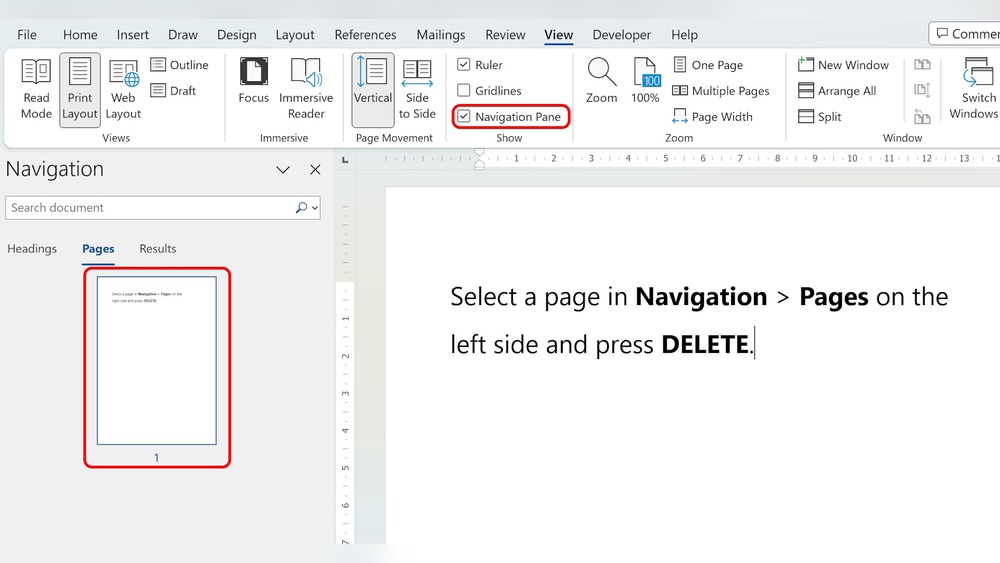
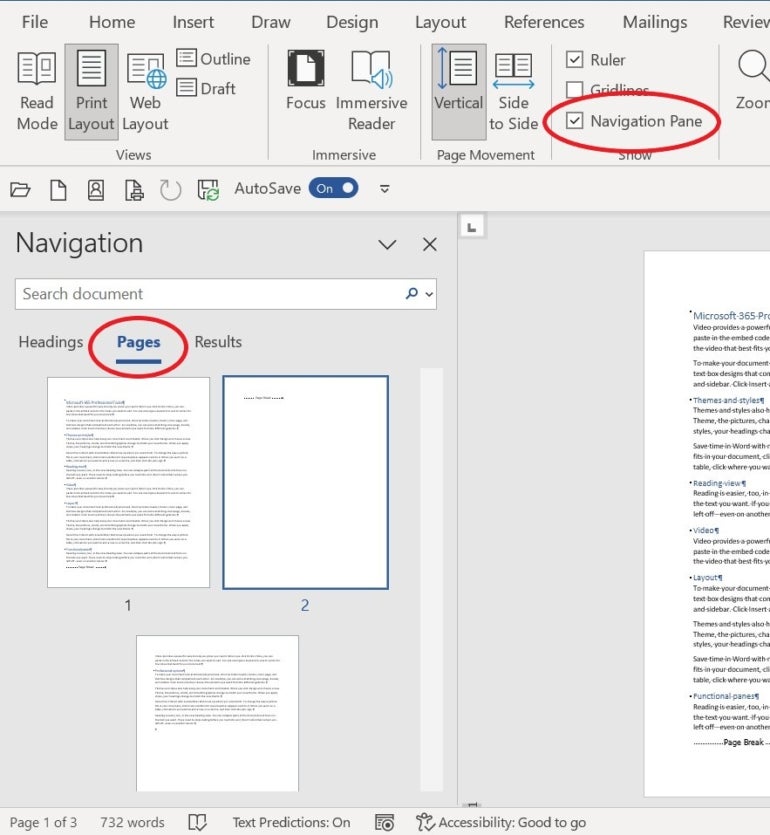
First, open your Word document. Go to the View tab on the top menu. Look for the Navigation Pane option and click its checkbox. The pane will appear on the left side of your screen. It shows different tabs like Headings, Pages, and Results. Click the Pages tab to see page thumbnails.
Select Page Thumbnail
Scroll through the thumbnails in the Navigation Pane. Find the page you want to delete by checking the small images. Click on the thumbnail of that page. The main document will jump to the selected page. This helps you confirm you picked the right page. Now, you are ready to remove it.
Remove Selected Page
Click anywhere on the selected page in the main document area. Press the Delete key on your keyboard. If the page does not delete, try pressing Backspace instead. Sometimes, extra spaces or page breaks keep the page visible. Repeat pressing Delete or Backspace to remove all content on the page. The page will disappear from the document and Navigation Pane.
Credit: www.techrepublic.com
Remove Page With Go To Command
Removing a page in Word can be quick using the Go To command. This method lets you jump directly to the page you want to delete. It works well for pages with hidden content or blank pages that are hard to select.
Follow the steps below to find and delete any page fast.
Open Find And Replace Dialog
Press Ctrl + G on your keyboard. This opens the Find and Replace dialog box at the “Go To” tab. You can also access it by clicking “Home” > “Find” > “Go To”.
Enter Page Code
In the “Enter page number” field, type page. This code selects the entire page. Click the “Go To” button, then click “Close” to exit the dialog. Now the page is highlighted.
Delete Highlighted Page
Press the Delete key on your keyboard. The selected page content will be removed immediately. Check your document to confirm the page is gone.
Use Show/hide Paragraph Marks
Using the Show/Hide Paragraph Marks feature in Word helps find hidden elements causing extra pages. These marks show all formatting symbols like paragraph breaks, page breaks, and section breaks. They help identify the exact cause of unwanted pages. This tool is essential for deleting pages that do not clear with normal backspacing.
Reveal Formatting Symbols
Open your Word document and go to the Home tab. Click the Show/Hide ¶ button to display all formatting symbols. This includes paragraph marks, spaces, tabs, and page breaks. Seeing these symbols makes it easy to spot hidden breaks or extra paragraphs. These often cause blank or extra pages.
Select Hidden Breaks Or Paragraph Marks
Scroll to the page you want to delete. Look for paragraph marks (¶), page breaks, or section breaks. These marks may be invisible without the Show/Hide option. Click and drag your mouse to highlight these hidden marks. Selecting them is the first step to removing the unwanted page.
Delete Unwanted Marks
With the hidden marks selected, press the Delete key on your keyboard. This removes the extra formatting causing the blank page. Sometimes, multiple marks need deletion to fully clear the page. After deleting, check if the page is gone. Turn off Show/Hide to view the clean document.
Credit: www.youtube.com
Eliminate Blank Pages
Blank pages in Word disrupt your document’s flow and look unprofessional. Removing these pages cleans your file and improves readability. This section explains how to eliminate blank pages by understanding their causes and removing hidden elements.
Identify Causes Of Blank Pages
Blank pages often appear due to hidden formatting marks. Extra paragraph marks, page breaks, or section breaks can create empty pages. Sometimes, tables or images push content to a new page. Identifying these causes helps fix the problem quickly.
Remove Extra Paragraphs
Extra paragraph marks add unwanted space. Show paragraph marks by clicking the ¶ symbol on the Home tab. Select the empty paragraphs on the blank page. Press Delete or Backspace to remove them. This action often deletes the blank page immediately.
Delete Page And Section Breaks
Page and section breaks force new pages. Display formatting marks to find these breaks. Click at the start of the break and press Delete. Removing breaks merges content and removes blank pages. Be careful with section breaks as they affect layout and headers.
Handle Pages That Won’t Delete
Sometimes deleting a page in Word can be tricky. Some pages just won’t go away with normal deletion. These stubborn pages often hide special formatting marks. Learning how to handle these pages helps keep your document clean and neat.
Locate Page And Section Breaks
Page breaks and section breaks cause extra pages to appear. They act as invisible barriers in your document. To find them, turn on the Show/Hide tool. It shows paragraph marks, page breaks, and section breaks. Select the break and press Delete to remove it. This action often deletes the unwanted page.
Use Navigation Pane For Stubborn Pages
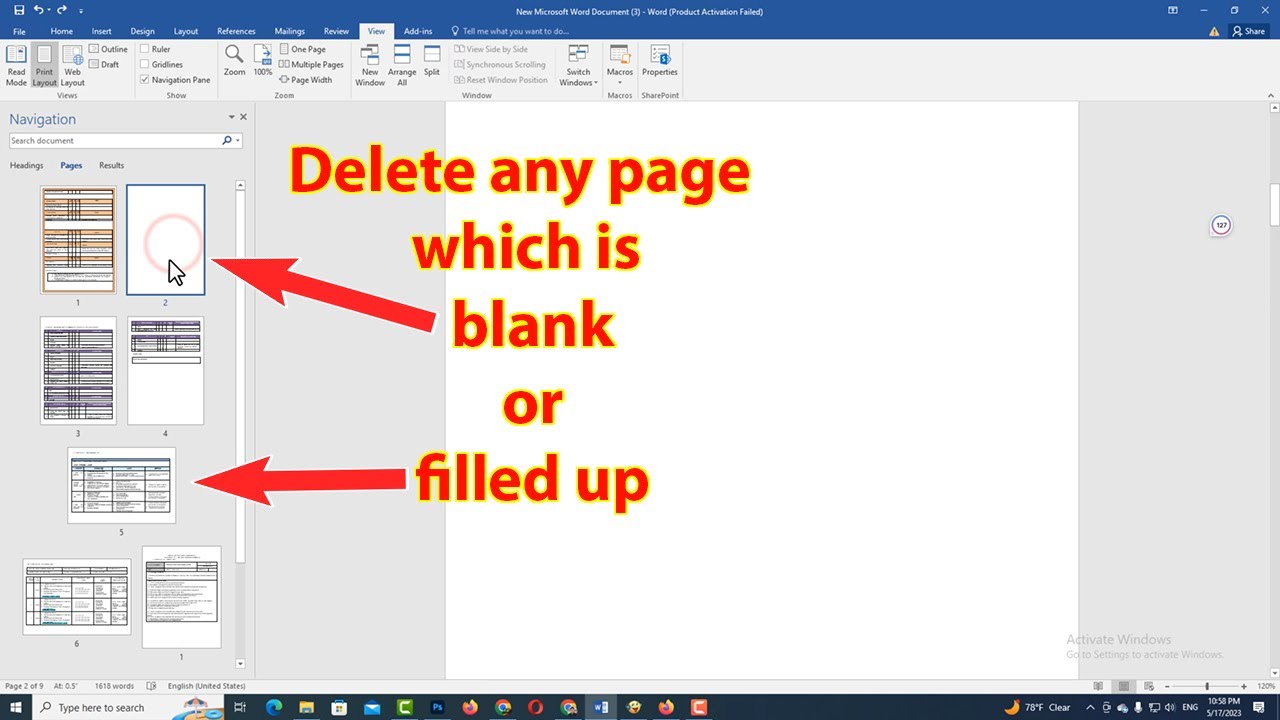
The Navigation Pane helps find and delete hard-to-remove pages. Open it by clicking the View tab and checking Navigation Pane. Click the Pages tab to see all pages as thumbnails. Select the page you want to delete. Press Delete or Backspace to remove the page quickly.
Apply Find & Replace For Difficult Pages
Find & Replace can delete pages by targeting page breaks. Press Ctrl + G to open the Go To tab in Find & Replace. Type page and click Go To. This selects the entire page. Press Delete to remove the page. Repeat this if multiple pages need deleting.
Credit: www.youtube.com
Keyboard Shortcuts For Quick Deletion
Keyboard shortcuts save time and make deleting pages in Word faster. Using simple keys, you can jump to the exact page and remove it quickly. These shortcuts help avoid scrolling and manual selection. Learn two essential shortcuts that speed up page deletion.
Ctrl + G For Page Navigation
Press Ctrl + G to open the Go To dialog box. Type page in the box and hit Enter. This selects the entire current page instantly. Close the dialog and press the Delete key to remove the page. This shortcut works well for removing blank or unwanted pages fast.
Delete And Backspace Usage
After selecting the page or content, use the Delete key to erase it forward. Backspace removes content backward from the cursor. Both keys clear text, images, and page breaks. Use Delete to remove the selected page and Backspace for cleaning extra spaces or paragraphs. Combining these keys helps tidy up documents quickly.
Frequently Asked Questions
How Do You Delete An Extra Page In Word?
To delete an extra page in Word, click the page, press Ctrl+G, type page, press Enter, then Delete. Alternatively, enable Show/Hide marks, select page breaks or ¶ symbols, and press Delete. Use the Navigation Pane to select and remove pages quickly.
How Do I Delete A Page In Word That Won’t Delete?
To delete a stubborn page in Word, press Ctrl+G, type page, and hit Enter. Close the dialog and press Delete. Use Show/Hide ¶ to remove extra breaks or paragraphs blocking deletion. Check Navigation Pane to select and delete the page directly.
Where Is The Delete Page Button In Word?
The Delete Page button does not exist in Word. Select the page content, press Ctrl+G, type page, then press Delete to remove the page.
How Do I Delete Extra Blank Pages In Docs?
Open the Navigation Pane under View, select the extra blank page, and press Delete. Or, press Ctrl+G, type page, hit Enter, then Delete. Use Show/Hide ¶ to find and remove hidden paragraph marks or page breaks causing blank pages.
Conclusion
Deleting a page in Word is simple with the right steps. Use the Navigation Pane or Go To feature to find pages fast. Showing paragraph marks helps reveal hidden breaks or empty spaces. Removing these clears unwanted pages quickly. Practice these methods to keep your document neat.
Word offers easy tools for better page control. Now, managing your pages feels less confusing and more efficient.










