
Have you ever found yourself searching for an app on your iPhone, only to realize it’s nowhere to be found? Maybe you accidentally hid it or it got tucked away in the App Library without you noticing.
It’s frustrating, especially when you need that app right away. But don’t worry—unhiding apps on your iPhone is easier than you think. In this guide, you’ll discover simple steps to quickly find and bring back those hidden apps to your home screen.
Keep reading, and you’ll never lose track of your favorite apps again!
Locate Apps In App Library
Locating hidden apps on your iPhone is simple with the App Library. The App Library organizes all apps in one place. It helps find apps not visible on the Home Screen. This section explains how to locate and unhide apps using the App Library.
Navigate To App Library
Swipe left on your Home Screen until you reach the App Library. It is the last page after all Home Screens. The App Library groups apps by category automatically. You can scroll or use the search bar at the top. This is the main place to find hidden apps.
Find Hidden Folder
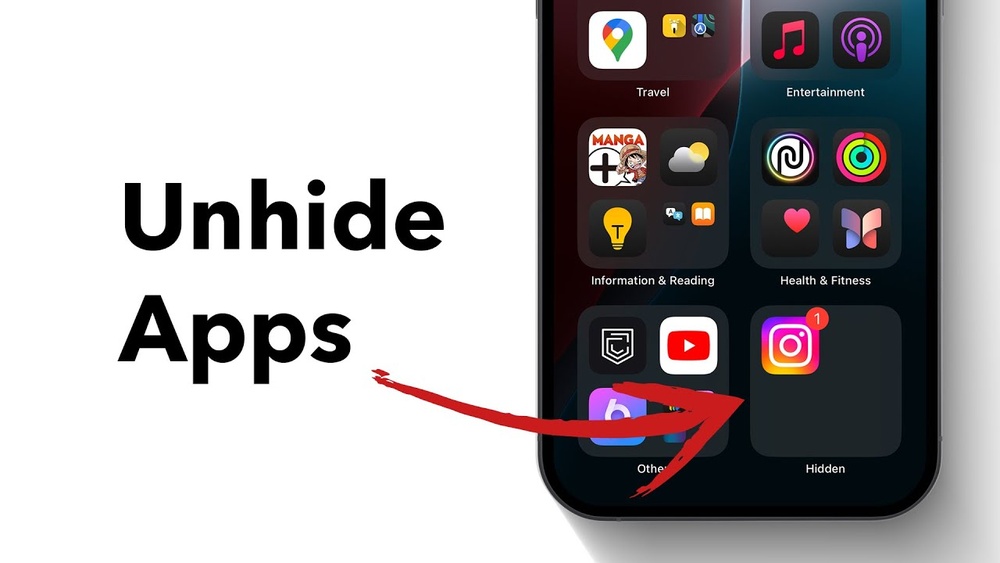
In the App Library, look for a folder named “Hidden” or similar. This folder stores apps you have hidden from the Home Screen. Tap the folder to open it. Inside, you will see all your hidden apps listed. This is where you can manage apps you want to unhide.
Unhide Via Face Id Or Passcode
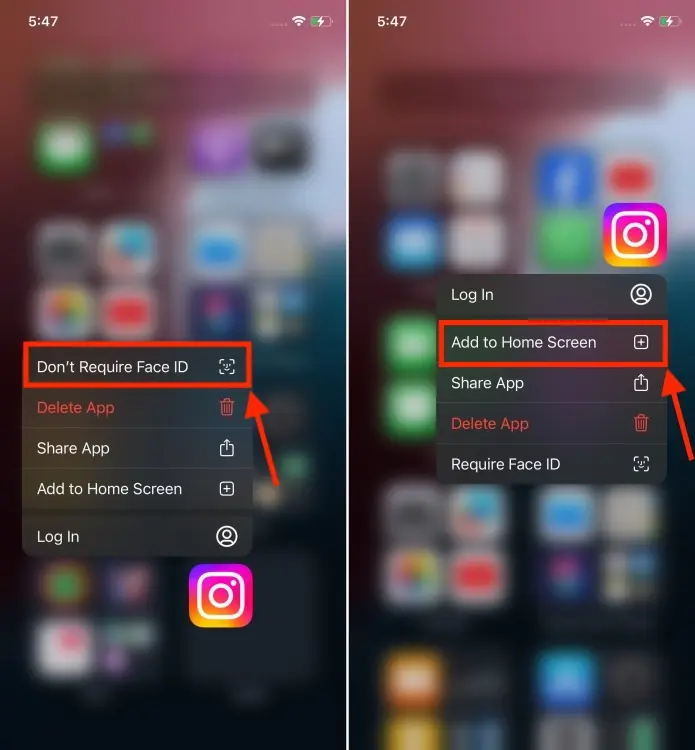
To unhide an app, tap and hold the app icon in the Hidden folder. A menu will appear with options. Select “Unhide” or “Add to Home Screen” from the list. You may need to verify your identity using Face ID or your passcode. After authentication, the app returns to the Home Screen.
Use Search To Reveal Apps
Using the search feature on your iPhone is a quick way to find apps that seem hidden. This method helps you reveal apps without scrolling through multiple screens. It works even if the app is not visible on your Home Screen.
Search lets you open the app directly or add it back to your Home Screen. This is useful for apps you may have accidentally moved or hidden in folders. The steps below show how to use search to reveal and restore apps on your iPhone.
Swipe Down On Home Screen
Start by unlocking your iPhone and going to the Home Screen. Swipe down from the middle of the screen to open the Search bar. This gesture brings up a search field where you can type the app’s name.
Type App Name
Tap the search bar and enter the name of the app you want to unhide. The iPhone will display matching apps and results. Look for the app icon in the list that appears below the search field.
Add App To Home Screen
If the app appears but is missing from your Home Screen, press and hold its icon in the search results. A menu will pop up. Select “Add to Home Screen” to restore the app’s icon to your main screens.
Adjust Settings To Unhide
Adjusting your iPhone settings helps reveal apps hidden from view. Some apps might be invisible due to purchase settings or parental controls. Changing these settings can make apps appear again on your Home Screen or App Library. Follow simple steps to check hidden purchases and modify restrictions.
Check Hidden Purchases
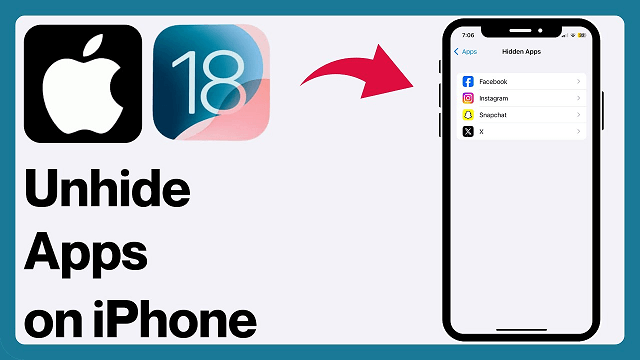
Open the Settings app and tap your name at the top. Select Media & Purchases, then tap View Account. Scroll to find Hidden Purchases and tap it. Here, you see apps hidden from your purchase history. Tap the app you want to unhide. This action restores the app to your purchased list and allows you to download it again.
Modify Screen Time Restrictions
Go to Settings and select Screen Time. Tap Content & Privacy Restrictions. Enter your Screen Time passcode if asked. Choose Allowed Apps or Content Restrictions. Make sure the app you want is allowed. Turn off any restrictions blocking the app. This step makes hidden apps visible and usable on your iPhone.
Credit: www.fonetool.com
Unhide Apps Using Long Press
Unhiding apps on your iPhone is simple with the long press method. This technique lets you add hidden apps back to your Home Screen quickly. It does not require digging through settings or menus. Just a few taps bring your apps back into view. Follow these steps to unhide apps using a long press.
Press App Icon In Folder
Find the folder where your hidden app is stored in the App Library. Press and hold the app icon gently. A menu will appear with several options. This action helps you access app controls without opening the app. It is the first step to unhide your app.
Select Add To Home Screen
From the menu, choose “Add to Home Screen.” This option moves the app out of the folder. The app icon will now show on your Home Screen. You can repeat this for any app you want to unhide. This method keeps your Home Screen organized and easy to use.
Tips For Missing Or Deleted Apps
Sometimes apps on your iPhone may seem to disappear. They might be hidden or deleted by mistake. This section shares simple tips to find and restore those missing or deleted apps. These easy steps will help bring your apps back quickly.
Restart Your Iphone
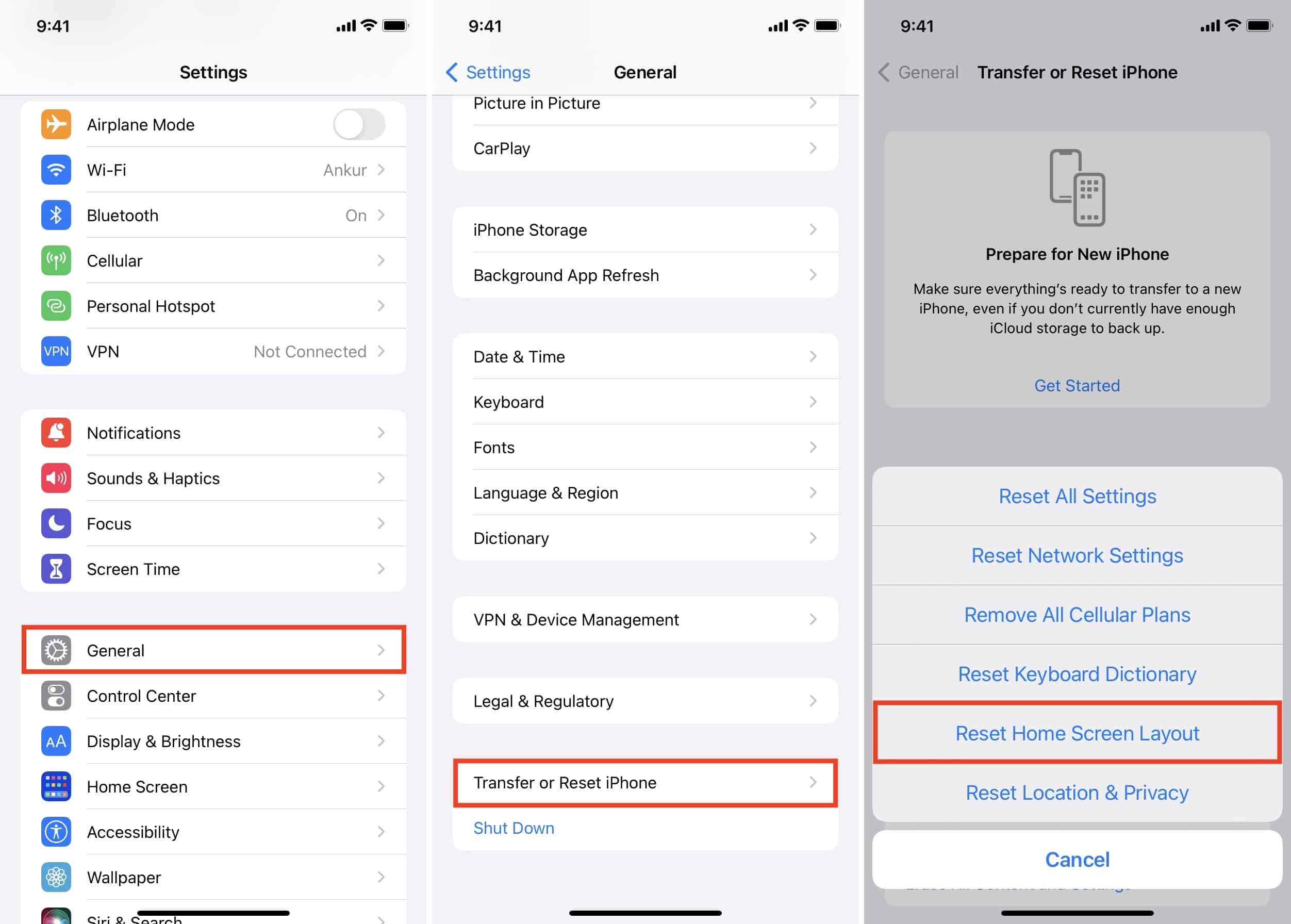
Restarting your iPhone can solve many small issues. It refreshes the system and may make missing apps visible again. Hold the power button, slide to turn off, then turn the phone back on. Check your home screen or App Library after the restart.
Redownload From App Store
Deleted apps can be downloaded again from the App Store. Open the App Store and tap the search icon. Type the app’s name and find it in the results. Tap the download button to reinstall it. Your data may return if the app supports cloud backup.
Credit: beebom.com
Differences On Android Devices
Android devices handle hidden apps differently than iPhones. Android offers more flexibility through various settings and launchers. This affects how users unhide apps across different brands and models. Understanding these differences helps users manage their apps better.
Access App Drawer Settings
On many Android devices, hidden apps are managed in the App Drawer. Open the App Drawer by swiping up on the home screen. Tap the menu icon or three dots to access settings. Look for options like “Hide apps” or “Hidden apps.” Uncheck the apps you want to unhide. Changes apply immediately, and the apps appear in the drawer again.
Use Device Search
Android devices have a powerful search feature. Swipe down on the home screen to open search. Type the name of the hidden app in the search bar. If found, tap the app to open it directly. Some devices let you add it back to the home screen from the search results. This method works even if the app is hidden in the drawer.
Check Custom Launcher Settings
Many Android users install custom launchers like Nova or Apex. These launchers often include extra options to hide apps. Open the custom launcher’s settings menu. Find the “Hide apps” section. Uncheck the apps you want visible again. Restart the launcher or refresh the home screen to apply changes. Custom launchers give more control over app visibility.
Credit: www.idownloadblog.com
Frequently Asked Questions
How Do I Unhide Apps On My Iphone?
To unhide apps on your iPhone, open the App Library, find the hidden app, long-press it, and tap “Add to Home Screen. ” Alternatively, search the app, then add it back to your Home Screen. Check Settings under Screen Time or Media & Purchases for hidden restrictions.
How Do I Get My Hidden Apps Back?
To get hidden apps back, open the App Library (iPhone) or App Drawer (Android). Search or check “Hidden Apps” folder. Long-press the app and select “Unhide” or add it to the Home Screen. Alternatively, adjust settings under Home Screen or App preferences to reveal hidden apps.
How Do I Get My Hidden Icons Back On My Iphone?
Open the App Library by swiping left past Home Screens. Find the hidden app, long-press it, then tap “Add to Home Screen” to unhide it. Alternatively, search the app name, then add it back to your Home Screen. Restart your iPhone if needed.
How To Get An App Back On Your Home Screen On Iphone?
Swipe left to open the App Library, find the app, then long-press and tap “Add to Home Screen. ” Alternatively, search the app, long-press it, and select “Add to Home Screen. ” This restores the app icon to your iPhone’s Home Screen quickly.
Conclusion
Unhiding apps on your iPhone is simple and quick. Use the App Library or search bar to find hidden apps easily. You can also adjust settings to manage app visibility. Following these steps helps keep your apps accessible and organized.
Try these methods anytime you need to unhide apps. Enjoy a cleaner, more user-friendly home screen. Keep your iPhone experience smooth and hassle-free.










