
Are you tired of seeing unwanted content or dealing with annoying users on TikTok? Knowing how to block someone on TikTok can instantly give you control over your feed and protect your peace of mind.
Whether it’s a stranger, a persistent spammer, or someone you just don’t want to interact with, blocking is the easiest way to stop them from bothering you. In this guide, you’ll learn simple, step-by-step instructions to block anyone on TikTok quickly—no tech skills required.
Keep reading to take charge of your TikTok experience and enjoy the content you love without distractions.
Find The User Profile
To block someone on TikTok, you first need to find their user profile. This profile is the gateway to managing your interactions with that user. Locating the profile is simple and can be done in a few ways. Knowing how to access the profile quickly saves time and ensures you block the right person.
Below are two common methods to find a user profile on TikTok.
Search By Username
Open the TikTok app and tap the search icon at the bottom. Type the exact username of the person you want to block. Usernames are unique, so this helps find the correct profile. Scroll through the results if needed, then tap on the username. This action takes you directly to their profile page.
On the profile page, you can check their videos and bio to confirm it is the right account.
Access Through Comments Or Videos
Sometimes, you see a user’s comment or video in your feed. Tap on their username shown next to the comment or video. This instantly opens their profile page without searching. This method is useful when you spot unwanted content or interaction.
Once on the profile, you can decide to block the user to stop further contact or content from them.

Credit: mashable.com
Use The Share Icon
The Share Icon on TikTok offers a quick way to block unwanted users. This feature is easy to find and use on any profile. It helps you control who can see your content or interact with you. Blocking through the Share Icon is handy when you want to act fast.
Locate The Arrow Icon
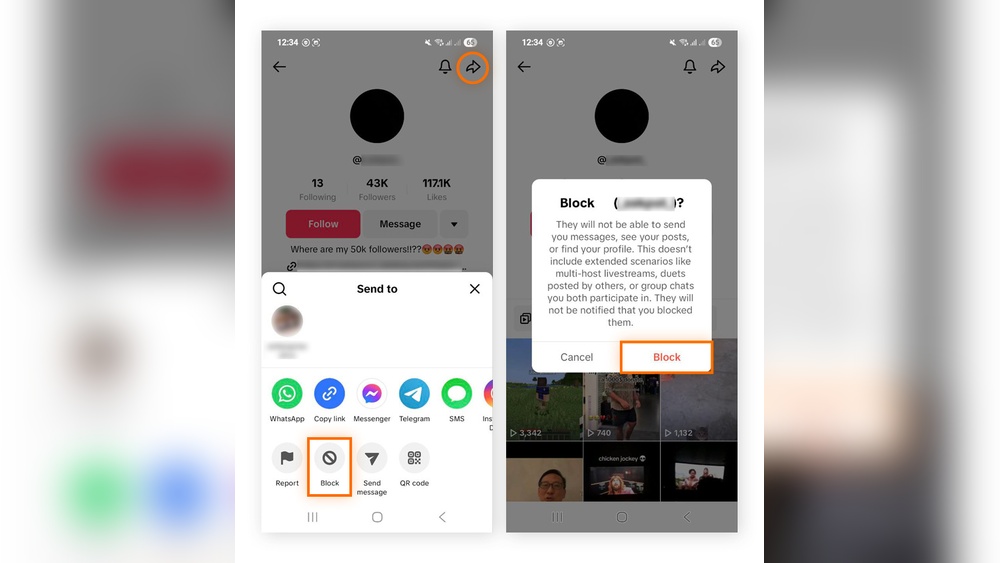
First, open the profile of the user you want to block. Look at the top right corner of the screen. You will see a small arrow pointing right. This is the Share Icon. It is the key to opening more options on TikTok.
Open The Options Menu
Tap the arrow icon to open a menu at the bottom of the screen. This menu contains several actions you can take. Scroll through the options until you find “Block.” Tap “Block” to start the process. A confirmation message will pop up. Confirm your choice by tapping “Block” again.
Select Block Option
After locating the user you want to block on TikTok, the next step is to select the block option. This step is simple and quick but very important to stop unwanted interactions. The block option helps protect your privacy and improve your experience on TikTok.
Tap Block
On the user’s profile, find the share icon. It looks like an arrow pointing to the right. Tap this icon to open a menu of options. From this menu, select the option labeled “Block.” This choice tells TikTok you want to block this user.
Confirm Blocking
After tapping “Block,” a confirmation message will appear. TikTok asks if you are sure about blocking this user. This step prevents accidental blocking. To confirm, tap “Block” again. The user is now blocked and cannot view your content or contact you.
Block Without Following
Blocking users on TikTok does not require you to follow them first. You can stop unwanted interactions quickly without any prior connection. This keeps your experience safe and peaceful.
Learn how to block users without following them. This helps you control who can view or contact you on TikTok.
Block Unknown Users
To block unknown users, start by finding their profile. Tap their username on a video or comment.
Once on their profile, tap the share icon at the top right. It looks like an arrow pointing right.
From the menu that appears, select the “Block” option. Confirm your choice by tapping “Block” again.
This method stops the user from viewing your content or messaging you, even if you never followed them.
Block From Search Or Profile
You can also block users directly from search results or their profile page.
Type the username in the search bar to find the person. Tap their profile from the results.
On their profile, tap the share arrow in the top right corner. Choose “Block” from the options.
Confirm to complete the block. This action works without needing to follow the user first.
What Blocking Does
Blocking someone on TikTok changes how they interact with you. It stops unwanted contact and keeps your experience safe. You control who sees your content and who can send you messages. Understanding what blocking does helps you use this feature effectively.
Restrict Messages And Comments
When you block a user, they cannot send you messages. They also cannot comment on your videos. This stops any unwanted or harmful communication from that person. You will no longer see messages or comments from them.
Hide Profile And Content
Blocking hides your profile and videos from the blocked user. They cannot find your account in search results. Your content will not appear on their feed. It is like you disappear from their TikTok world.
Change Follow Button To Unblock
After blocking, the follow button changes to an unblock option. This button lets you reverse the block if you want. You can unblock the user anytime to restore their access to your content.

Credit: mashable.com
Troubleshoot Blocking Issues
Blocking someone on TikTok should be simple, but sometimes issues arise. Troubleshooting helps fix common problems. This ensures you can block unwanted users easily and protect your experience.
Follow these tips if you cannot find the blocking option or if it does not work as expected. The solution often lies in app updates or interface changes.
No Three Dots Or Arrow Icon
Sometimes, the blocking option is hidden because the three dots or arrow icon is missing. This icon usually appears on the top right of a user’s profile. Without it, you cannot access the block menu.
This issue can happen due to app glitches or changes in TikTok’s design. Try restarting the app or checking the profile again. If the icon still does not show, you may need to update the app.
Update Tiktok App
Using an outdated TikTok version can cause blocking features to disappear or malfunction. Updating the app fixes bugs and adds new features. It also improves security.
Go to your device’s app store and check for TikTok updates. Download and install the latest version. After updating, reopen TikTok and visit the user’s profile. The three dots or arrow icon should now appear.
Manage Blocked Users
Managing blocked users on TikTok helps keep your experience safe and pleasant. You control who can interact with you and see your content. TikTok lets you review and adjust your blocked list anytime. This way, you stay in charge of your privacy and connections.
View Blocked List
Open TikTok and go to your profile page. Tap the three-line menu in the top right corner. Select “Settings and privacy” from the menu options. Scroll to find “Privacy” and tap on it. Look for “Blocked accounts” and tap to open the list. Here, you see all users you have blocked.
This list shows usernames and profile pictures. You can check who you have restricted access. It helps you review and decide if you want to keep blocking them.
Unblock Users When Needed
From the blocked list, pick the user you want to unblock. Tap their name to open their profile. You will see the “Unblock” button on their profile page. Tap “Unblock” to allow them access again.
After unblocking, they can view your content and interact with you. Use this feature to restore connections if you change your mind. Managing blocked users keeps your TikTok space comfortable and under your control.
Credit: www.avast.com
Privacy Tips On Tiktok
Protecting your privacy on TikTok is essential for a safe and enjoyable experience. TikTok offers several tools to control who sees your content and how others interact with you. Adjusting these settings helps keep unwanted attention away. Use privacy features to manage your account carefully and stay in control.
Adjust Privacy Settings
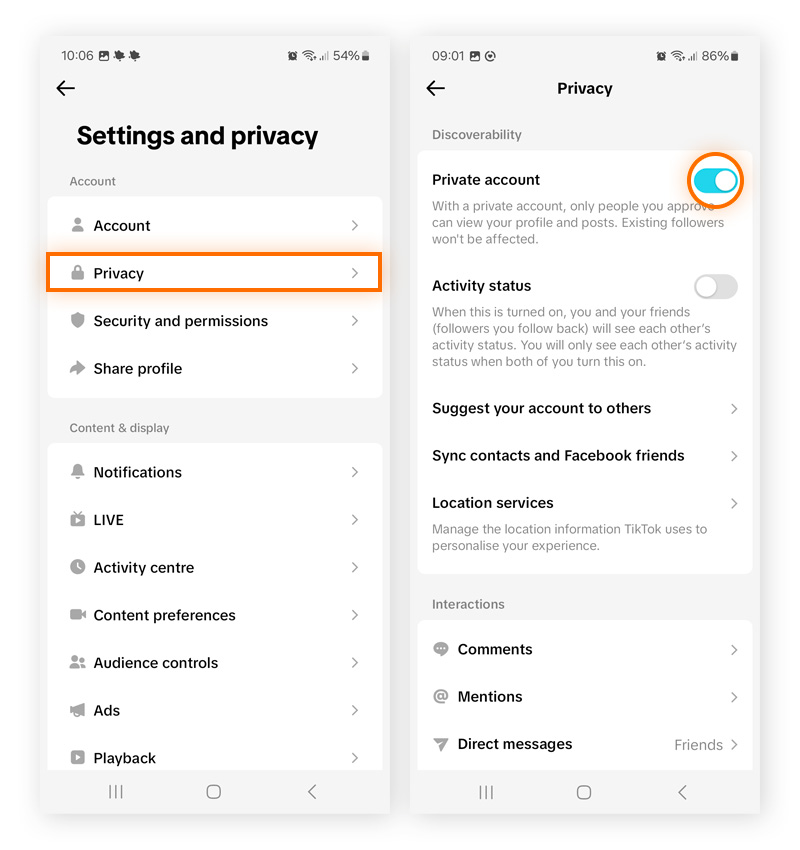
Start by setting your account to private. This limits your content to approved followers only. Go to your profile, tap the three dots, then select “Privacy.” Turn on “Private Account” to restrict access. Control who can view your videos, like your posts, and follow you. Review your settings regularly to keep them updated.
Control Comments And Messages
Manage who can comment on your videos. In the Privacy menu, choose “Comments” and select who can comment. Options include everyone, friends, or no one. Filter out offensive words using TikTok’s comment filters. For messages, limit who can send you direct messages. Choose from everyone, friends, or disable messages completely.
Frequently Asked Questions
How Do I Block Someone On Tiktok?
Open TikTok and find the user’s profile. Tap the share arrow on the top right. Select “Block” and confirm to block them.
Why Can’t I Block On Tiktok?
You can’t block on TikTok if the user’s profile settings restrict blocking or if you face a temporary app glitch. Update the app or check your internet connection.
Can You Block Someone On Tiktok If You Don’t Follow Them?
Yes, you can block anyone on TikTok without following them. Visit their profile, tap the share icon, then select “Block. “
How To Block Someone On Tiktok If There Is No Three Dots?
Open the user’s profile on TikTok. Tap the share arrow icon at the top right. Select “Block” from the menu. Confirm by tapping “Block” again. This method works if the three dots are missing.
Conclusion
Blocking someone on TikTok helps keep your experience safe and pleasant. You control who sees your content and contacts you. The process is simple and quick to follow. Remember, blocking stops unwanted interactions immediately. Use this feature whenever you need peace on TikTok.
Stay comfortable and enjoy your time on the app.










